


 Asset Management
Contract & Supplier Management
GLPI contracts help you keep IT-related agreements (maintenance, leasing, warranties, SLAs, etc.) in a structured repository. The practical value is not only “documentation”: once contracts are linked to assets/hosts, you can immediately understand coverage (what is protected), ownership (who provides support), and time constraints (what is about to expire).
This is useful during incident handling, change planning, renewals, and audits.
Suppliers in GLPI represent the vendors or service providers behind these contracts. Using a single supplier registry avoids duplications and makes it easier to standardize vendor names, contacts, and responsibilities.
Suppliers can be documented with essential identification and contact information such as name, third‑party type, location (address, postal code, town, country), and contact channels (website, phone, fax, etc.), making it easier to reference all suppliers involved with assets, quickly reach the right contact in case of incidents, and include suppliers in the assistance workflow.
Viewing and searching contracts
As a user with read access, you can open the contracts list, search by name/reference, and open a contract to review details such as dates, supplier, and linked assets. This is the typical workflow for verifying whether a host is still covered or for checking which assets are impacted by an upcoming expiration.
Creating a contract (Admin only)
When a new contract is signed (for example a support or maintenance agreement), it is recorded in GLPI so that:
the contract can be referenced in tickets, changes, or audits,
the covered asset base can be linked to it,
renewals and expirations can later be tracked centrally.
The contract record typically captures:
a human‑readable name and internal reference (contract number, PO, etc.),
the type of agreement (maintenance, lease, warranty, SLA, subscription…),
the validity period (start and end dates),
optionally, financial and qualitative aspects (costs, coverage notes, service levels, documents, etc.).
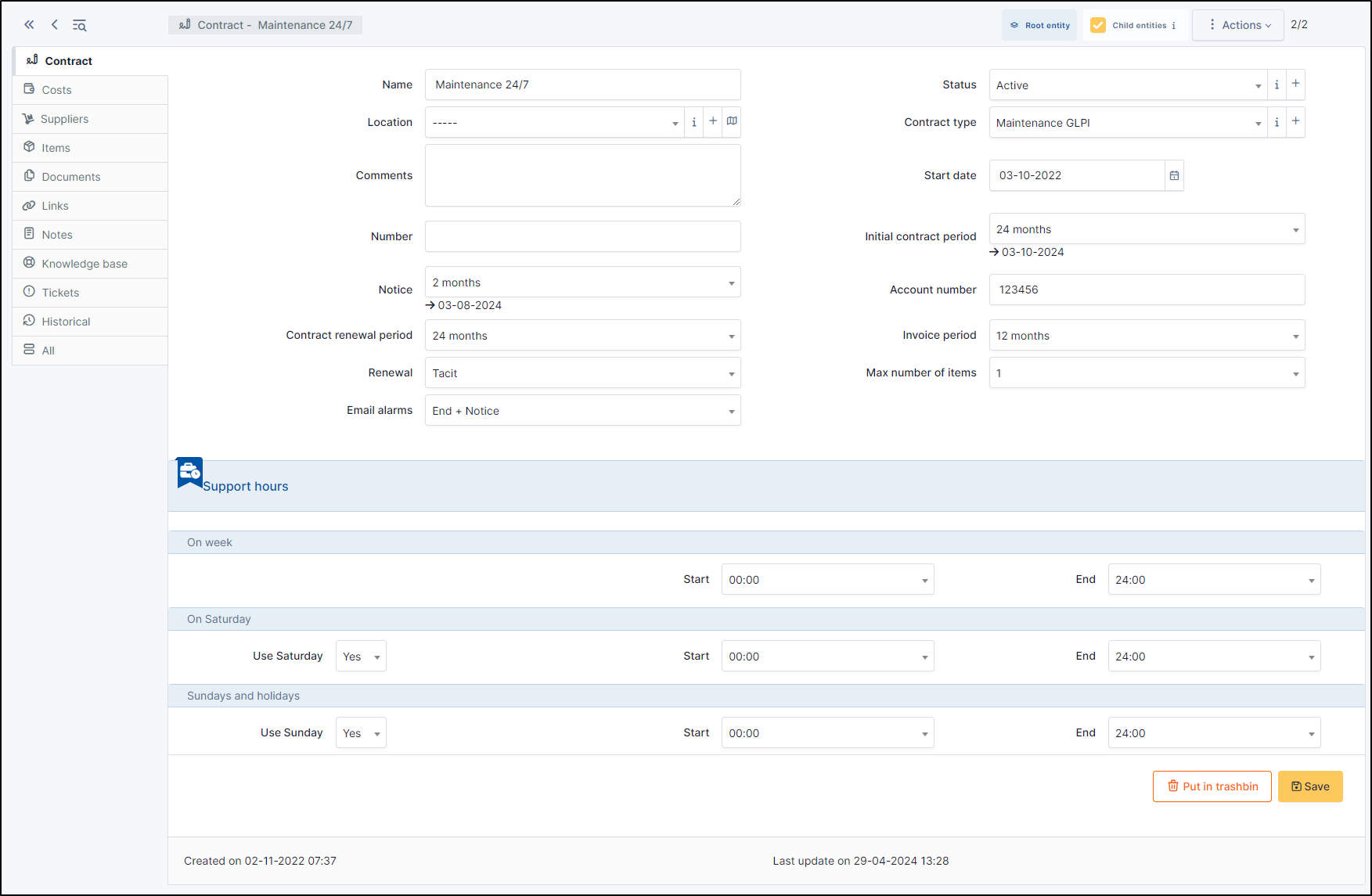
Fig. 193 Adding a Contract
The goal is to have enough information so that anyone looking at the contract understands what it is for, how long it lasts, and under which conditions.
Creating or updating suppliers (Admin only)
Conceptually, the supplier is the “party” behind the contract (vendor, reseller, support provider). Suppliers are managed in a dedicated tab of the Management section of GLPI.
When adding a new supplier, you will need to provide the basic identification data (name and contact information). In practice, maintaining a clean supplier list pays off because contracts (and sometimes assets) will reuse the same supplier record.
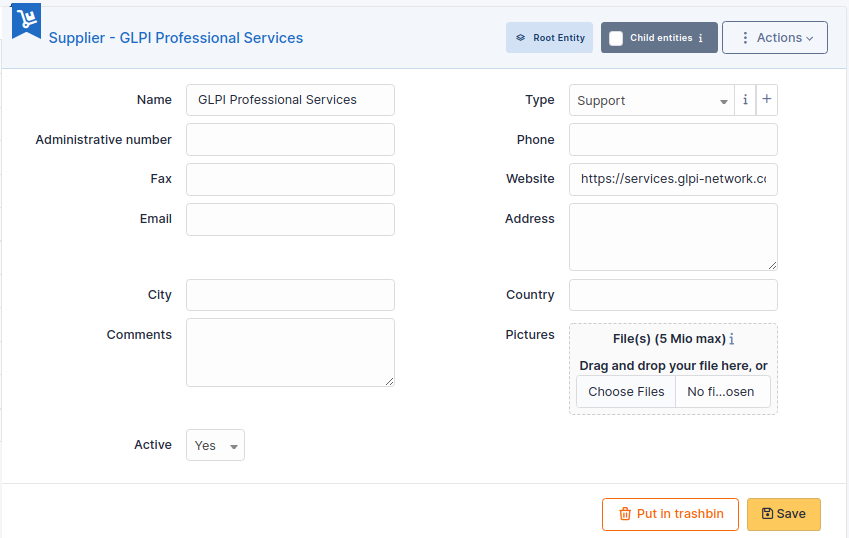
Fig. 194 Adding a Supplier
Each contract should clearly indicate which supplier/service provider is responsible. This association is what later allows you to quickly see who must be contacted when there is an incident, and distinguish between different contracts from the same vendor (for different regions, technologies, or service tiers).
You can assign a supplier to a contract (Admin only) from a given contract profile page, where you will need to select the supplier and then save.
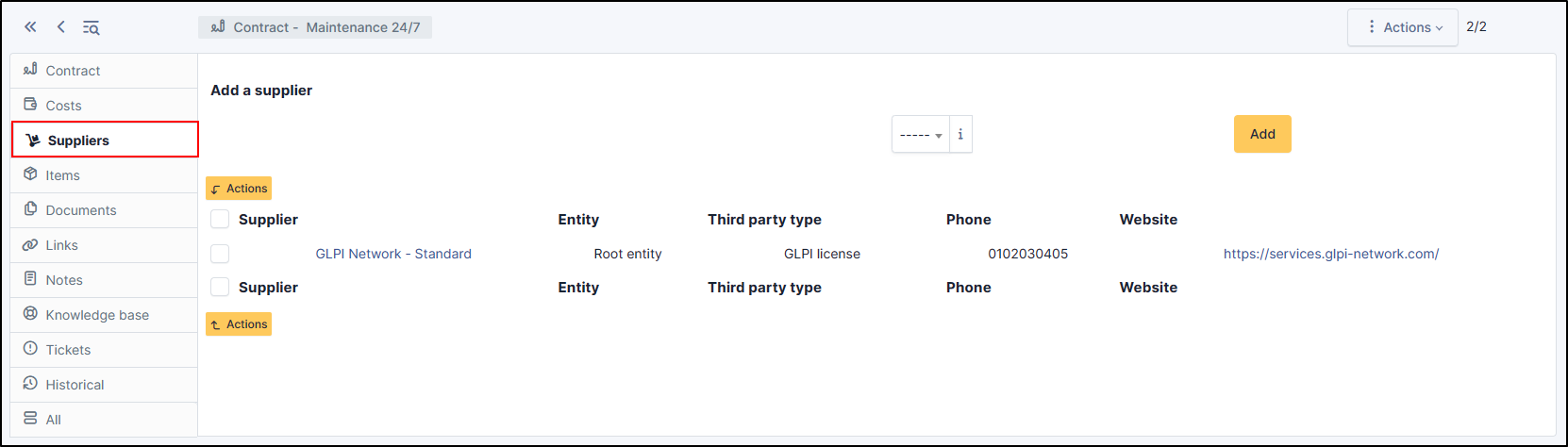
Fig. 195 Assign Supplier to a Contract
After this, anyone who can view the contract can immediately see who provides it.
Linking contracts and suppliers to assets (hosts)
In GLPI, linking works in both directions; you can choose the one that best fits your workflow:
From a contract to the assets it covers (Admin only)
Open a contract in Management → Contracts, then use the dedicated tab/section (often named something like “Associated items”) to attach the covered assets. This approach is convenient when you renew or create a contract that covers many devices at once.
From an asset to its contracts (Admin only to change, viewer to read)
Open an asset under Assets, then locate its Contracts` tab/section. Here you can review existing coverage (viewer) or link additional contracts (admin).
Once these links are maintained, day-to-day usage becomes simple: from the host you can see the relevant contract(s) and supplier(s), and from the contract you can list all covered hosts. This is exactly what enables quick impact analysis during renewals or supplier changes.
Tracking expirations and renewals
Expiration tracking is based on each contract’s start and end dates. A practical approach is to treat the contracts list as a renewal dashboard:
keep end dates accurate (especially after renewals),
use GLPI list search/filters to find contracts ending in the next 30/60/90 days,
save useful filters as predefined searches, so the same view can be reused regularly,
when you find a contract nearing expiry, open it and check the associated items to see which hosts would be affected.

