
User Guide Functional Overview Requirements Architecture System Installation NetEye Additional Components Installation Setup The neteye Command Director NetEye Self Monitoring Tornado Business Service Monitoring IT Operation Analytics - Telemetry Geo Maps NagVis Audit Log Shutdown Manager Reporting ntopng Visual Monitoring with Alyvix Elastic Stack IT Operations (Command Orchestrator) Asset Management Service Level Management Cyber Threat Intelligence - SATAYO NetEye.Cloud Solution Monitoring Business Service Monitoring Asset Management ELK - Log Analytics SOC System Administrator SOC Attacker Centric Cyber Threat Intelligence - SATAYO NetEye Update & Upgrade Backup and Restore How To NetEye Extension Packs Troubleshooting Security Policy Glossary
module icon ELK - Log Analytics
Getting Started with ELK Analytics
NetEye.Cloud Solution Monitoring Business Service Monitoring Asset Management ELK - Log Analytics SOC System Administrator SOC Attacker Centric Cyber Threat Intelligence - SATAYO Introduction to NetEye Monitoring Business Service Monitoring IT Operation Analytics Visualization Network Visibility Log Management & Security Orchestrated Datacenter Shutdown Application Performance Monitoring User Experience Service Management Service Level Management & Reporting Requirements for a Node Cluster Requirements and Best Practices Kubernetes Networking NetEye Satellite Requirements TCP and UDP Ports Requirements Additional Software Installation Introduction Single Node Cluster Kubernetes NetEye Master Master-Satellite Architecture Underlying Operating System Acquiring NetEye ISO Image Installing ISO Image Single Nodes and Satellites Cluster Nodes Configuration of Tenants Satellite Nodes Only Nodes behind a Proxy Additional NetEye Components Satellites Nodes only Verify if a module is running correctly Accessing the New Module Cluster Satellite Security Backup and Restore Identity and Access Management External Identity Providers Configure federated LDAP/AD Emergency Reset of Keycloak Configuration Keycloak Hostname Configuration Advanced Configuration Roles Single Page Application in NetEye Module Permissions and Single Sign On Within NetEye Importing User Federation Groups inside another Group Importing OIDC IdP Groups inside another Group Resource Tuning Advanced Topics Basic Concepts & Usage Advanced Topics Monitoring Environment Templates Monitored Objects Import Monitored Objects Data Fields Deployment Icinga 2 Agents Configuration Baskets Dashboard Monitoring Status Integration with Elasticsearch VMD Permissions Notifications Jobs API Configuring Icinga Monitoring Retention Policy NetEye Self Monitoring Concepts Collecting Events Add a Filter Node WHERE Conditions Iterating over Event fields Retrieving Payload of an Event Extract Variables Create a Rule Tornado Actions Test your Configuration Export and Import Configuration Example Under the hood Development Retry Strategy Configuration Thread Pool Configuration API Reference Configure a new Business Process Create your first Business Process Node Importing Processes Operators The ITOA Module Configuring User Permissions Telegraf Metrics in NetEye Telegraf Configuration Telegraf on Monitored Hosts Visualizing Dashboards Customizing Grafana The NetEye Geo Map Visualizer Map Viewer Configuring Geo Maps NagVis Audit Log Overview Shutdown Manager user Shutdown Manager GUI Shutdown Commands Advanced Topics Overview User Role Management Cube Use Cases ntopng and NetEye Integration Permissions Retention Advanced Topics Overview User Roles Install Alyvix Core Install Alyvix Service Nodes RDP Client Tutorial Overview Example: Windows Start Button Example: Open Windows Settings Example: Web Browser Test Case Example: Authentication Test Case Alyvix Tutorial Video Index Building Tools Editor: Interface Overview Editor: Script Building Editor: Managing Scripts Designer: Interface Overview Designer: Interface Options Designer: Component Tree Selector: Interface Overview Test Case Execution Test Case Format Test Case Management Dashboard Use Cases Overview Architecture Authorization Kibana Elasticsearch Cluster Elasticsearch Configuration Replicas on a Single Node Elasticsearch Performance tuning Overview Enabling El Proxy Sending custom logs to El Proxy Configuration files Commands Elasticsearch Templates and Retentions El Proxy DLQ Blockchain Verification Handling Blockchain Corruptions El Proxy Metrics El Proxy Security El Proxy REST Endpoints Agents Logstash Rsyslog Elastic APM Elastic RUM Multitenant OpenTelemetry Collector Elastic XDR Overview Authorization in the Command Orchestrator Module Configuring CLI Commands Executing Commands Overview Permissions Installation Plugins Single Tenancy Multitenancy Communication through a Satellite Asset collection methods Display asset information in monitoring host page Overview Customers Availability Event Adjustment Outages Resource Advanced Topics Introduction The Intelligence We Produce Mitre Attack Coverage Getting Started Settings SATAYO Items Intelligence Requirements Managed Service Request Form FAQ Changelog SATAYO Community NetEye.Cloud as a SaaS solution NetEye.Cloud Subscription Base Concepts Authentication Options Authentication via IdP Group Claims for Authorization Management Authentication via Microsoft Entra ID Roles and Permissions Authorization Navigating the UI Monitoring with NetEye.Cloud Monitored Objects Finding and Filtering Hosts Exporting Monitoring Data Viewing Host and Service Details Organizing with Groups Tactical Overview Problems View Dashboard Typical Daily Interactions Scheduled Downtime Notifications and Alerts AutoDiscovery VMD Business Service Monitoring Business Process Logic Business Process View Asset Management in NetEye.Cloud Automatic Inventory Collection Software & License Management Contract & Supplier Management Change & Lifecycle Management Getting Started with ELK Analytics SOC System Administrator (AdS) Access to NetEye and Elastic Elastic Dashboards Elastic Discover Elastic Alerts Elastic Rules Introduction to SOC Attacker Centric Service Description NetEye SIEM About SATAYO Getting Started Threat Intelligence and Security Operations How SATAYO works MITRE ATT&CK Coverage Dashboard SATAYO Findings SATAYO REST API SaaS & Managed Mode SATAYO MCP Server Before you start Update Procedure Single Node Upgrade from 4.50 to 4.51 Cluster Upgrade from 4.50 to 4.51 Satellite Upgrade from 4.50 to 4.51 DPO machine Upgrade from 4.50 to 4.51 Create a mirror of the RPM repository Sprint Releases Feature Troubleshooting Backup and Restore Tornado Networking Service Management - Incident Response IT Operation Analytics - Telemetry Identity Provider (IdP) Configuration NetEye Cluster on Microsoft Azure NetEye Cluster on AWS Introduction to NEP Getting Started with NEPs Online Resources Obtaining NEP Insights Available Packages Advanced Topics NEP Updates & Upgrades Setup Configure swappiness Restarting Stopped Services Enable stack traces in web UI How to access standard logs Director does not deploy when services assigned to a host have the same name How to enable/disable debug logging Activate Debug Logging for Tornado Modules/Services do not start Sync Rule fails when trying to recreate Icinga object How to disable InfluxDB query logging Managing an Elasticsearch Cluster with a Full Disk Some logs are not indexed in Elasticsearch Elasticsearch is not functioning properly Reporting: Error when opening a report Debugging Logstash file input filter Bugfix Policy Reporting Vulnerabilities Cyber Resilience Act Compliance Glossary

Getting Started with ELK

NetEye.Cloud includes Log Analytics, which is based on the Elastic Stack. Elasticsearch stores and indexes the data collected from your environment, such as logs, metrics and traces. Kibana is the interface you use to work with that data. This chapter explains how to open Log Analytics and how its features are organized, so you know where to go for each task. Each feature has its own chapter with more detail.

Opening Log Analytics

Log in to NetEye.Cloud (https://neteye.cloud). On the start screen, click Log Analytics, which opens Kibana on the Log Analytics home page.
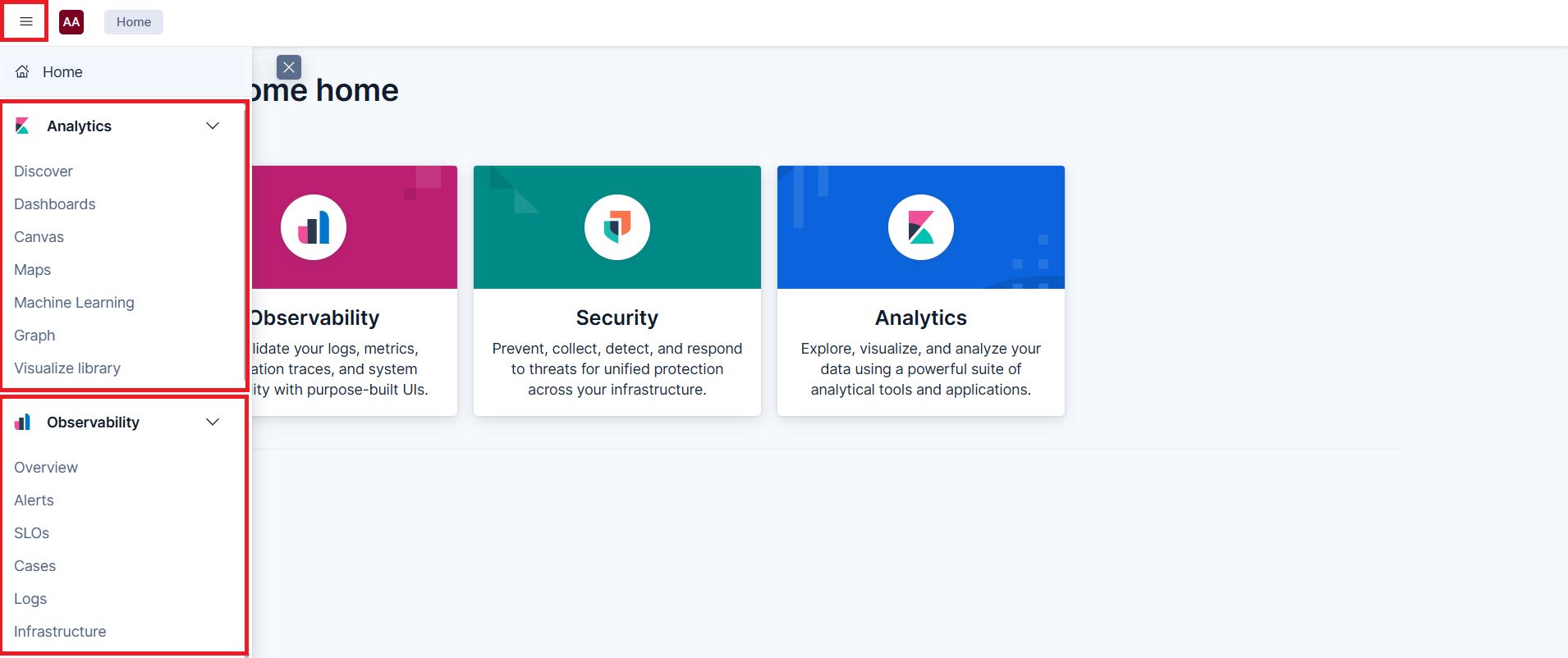
Log Analytics home page

Fig. 223 Log Analytics home page

The home page shows the two main areas of Log Analytics: Analytics and Observability. Click either one to open it. To go straight to a specific feature, open the menu in the top left corner. It lists the features of each area.

The two areas use the same data but for different purposes. In Analytics, you explore the data and present it: you search, filter, aggregate and visualize it. Observability is organized around the systems, applications and services you monitor. It shows their health and performance and helps you troubleshoot them. In daily work you’ll often use both. For example, you might notice a problem in Observability and then look at the underlying data in more detail in Analytics.

Tip

Most views include a time range selector. The data you see always depends on the selected period. If a view shows less data than you expect, check the time range first.

Analytics

Analytics is where you turn the data collected in Elasticsearch into information you can read and interpret. You use it to search for events, logs, metrics and other indexed data, and to filter them by time range, field or value. You can also look at trends, distributions and comparisons, and build the charts, tables and dashboards used for analysis and reporting.

Discover is usually your starting point. It gives you direct access to the raw data stored in Elasticsearch. You can look at individual records, inspect their fields and apply filters to narrow the results. You can also follow how events are distributed over the selected time range. Use Discover for quick investigations, for example to check whether a specific event was recorded. It also helps you understand what an index contains before you build anything on top of it.

Visualize Library is where you create and manage visualizations, such as charts, tables and metrics. Visualizations are saved in the library, so you can reuse the same one in several places instead of rebuilding it. This also keeps the way data is presented consistent across your team.

Dashboards combine several visualizations into a single view, together with filters that apply to the whole page. A dashboard shows the most important information about a topic in one place, such as a service, a group of hosts or a business process. This makes dashboards the usual tool for recurring monitoring and for sharing a common view within a team.

Canvas is for building workpads, which are free-form pages that combine live data, charts, text, images and other visual elements. Dashboards follow a grid structure, but Canvas lets you control the layout and appearance in detail. This makes it a better fit for presentation-oriented output, such as a status screen or a report.

Maps displays data that has a geographic component on interactive maps. You can place events, assets or metrics by location and analyze how they are distributed across regions, sites or specific areas.

Graph helps you explore relationships between entities in your data. It shows how values in different fields or records are connected. This is useful when you’re looking for links that aren’t visible in a list of events, for example between users, hosts and addresses involved in the same activity.

Machine Learning detects anomalies and unusual patterns in your data. It highlights behavior that differs from the norm, so you can notice issues or unexpected trends that a fixed threshold wouldn’t catch.

Observability

Observability is meant for monitoring systems, applications and services. It brings together logs, metrics and traces from applications and infrastructure, so you can look at the health, performance and availability of a service in one place. You can also correlate information from different sources. This makes it easier to find errors, slowdowns and anomalies, and to work out their cause.

Overview summarizes the whole observability environment. It shows the health, performance and status of your systems and applications at a high level. Use it to quickly see whether anything needs attention before you go into a specific area.

Logs gives you central access to application and infrastructure logs. You can search, filter and inspect log entries to find errors and see what happened around a specific event. This is often where troubleshooting starts once you know roughly when and where a problem happened.

Infrastructure is about hosts, containers and other infrastructure resources. It shows metrics such as CPU, memory, disk and network usage. These help you find bottlenecks and unusual system behavior, and decide whether a problem comes from the underlying resources.

Applications covers application performance monitoring. It shows response times, failures and throughput for your services, and how the services depend on each other. When an application is slow or returns errors, this view helps you find the service where the problem starts.

User Experience looks at how real users interact with your applications. It covers aspects such as page load times and frontend responsiveness. Use it to find issues that affect end users, even when the backend looks healthy.

Synthetics checks the availability and behavior of services with simulated tests. It checks whether websites, APIs or endpoints are reachable and respond as expected from the user’s point of view. Because the tests run independently of real traffic, you can detect a problem even when no user has been affected yet.

Alerts lists the alerts triggered by the rules defined in your environment. You can follow the warnings and incidents these rules generate and respond to them promptly.

Cases is for organizing and tracking incidents and operational issues. In a case, you document the problem, add comments, assign actions and follow the resolution step by step. This is useful when several people work on the same issue.

SLOs (Service Level Objectives) track whether your services meet their reliability or performance targets, such as availability or response time goals. Alerts and Cases are about individual incidents. SLOs show how a service performs against its targets over time.

Roles and Permissions

The ELK contract defines three roles: VIEWER, EDITOR and ADMIN. Your role determines which operations you can perform in Kibana. You can perform only the operations your role allows.

Roles are assigned to users or groups, depending on the authentication and profiling method configured in NetEye. Each feature chapter lists the role it requires in its Roles and permissions section.

Note

If a feature or action described in this guide isn’t available to you, ask your NetEye.Cloud administrator to check your role.
