


 ELK - Log Analytics
Analytics
The Analytics area of Kibana is where you work with the data your NetEye.Cloud tenant collects in Elasticsearch. Logs, events and metrics are stored as indexed documents, and Analytics gives you the tools to search them, look at them in detail and turn them into visual information you can share.
This section covers the Analytics applications available in your tenant, starting with the simplest way of working with data, and moving on to more structured views:
Discover: search and explore raw documents over a chosen time range, filter and sort results, inspect individual fields and save searches to reuse later. It also explains data views, which decide which indices or data streams each Analytics application works on.
Visualize Library: build charts, tables and metrics from your data and store them as reusable visualizations.
Dashboards: put several visualizations, saved searches and controls together in one view to keep track of the information that matters most to you.
Canvas: make free-form, presentation-style workpads that combine live data with text and images.
Maps: show geospatial data on interactive maps.
The search bar, filters and time picker work the same way in every Analytics application. They’re explained in detail in the Discover chapter, and the later chapters build on that.
Note
What you can do in each application depends on your ELK role. Users with the VIEWER role can view data and existing objects. EDITOR and ADMIN users can also create and change saved objects such as searches, visualizations and dashboards. Each chapter has a Roles and Permissions note that lists the operations allowed for each role.
Discover
Discover lets you search and explore indexed data in detail. Use it to look at raw documents, check what they contain and see how your data changes over a selected time range. For a full description of every feature, see the official Elastic documentation on Discover.
Roles and Permissions
Depending on the role defined by the contract with your organization, you might have different permissions:
VIEWER: Read
EDITOR: Create, Read and Update
ADMIN: Create, Read and Update
With Discover you can:
view the list of documents, the fields they contain and the details of each document, field by field
see the trend over time in a histogram, together with the total number of matching documents
limit the analysis to a specific period with the time filter
search data with the search bar and narrow down the results with filters
sort results on one or more fields and choose which columns to show
choose the data view to work on
inspect the request sent to Elasticsearch and the response it returns
save searches to reuse later or to add to a dashboard
Data Views
A data view is a configuration that tells Kibana which subset of Elasticsearch data to use. It selects one or more indices or data streams and makes them available for analysis in Discover, Dashboards and Visualizations.
Every search in Discover runs on a single data view. To change it, open the data view selector in the top-left corner of Discover and pick a data view from the list. From the same menu you can also create a new data view by giving it a name and an index pattern that matches the indices or data streams you want to analyze.
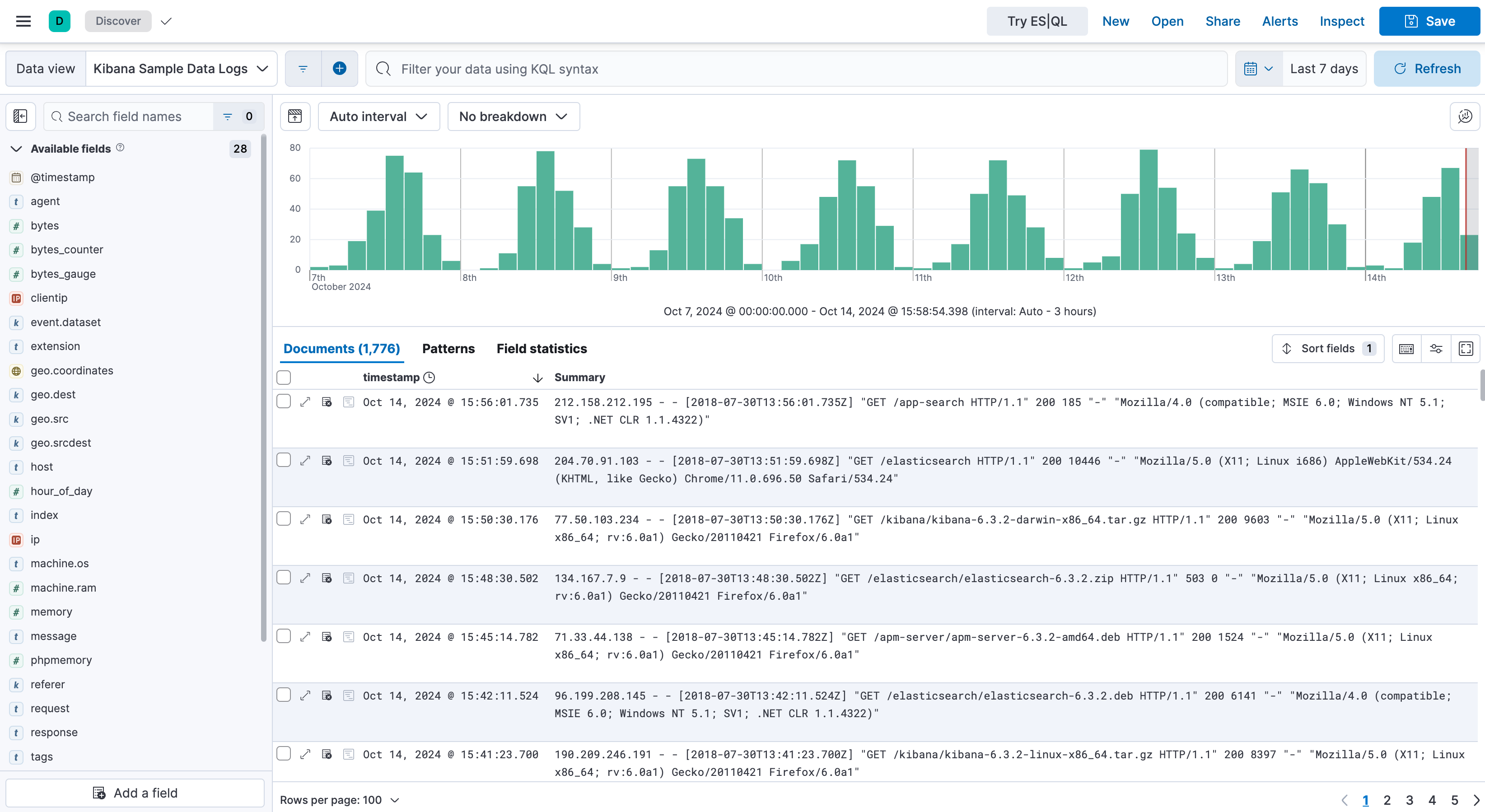
Fig. 224 Selecting a data view
Exploring your Data
- Time filter
Use the time picker at the top of the page to set the period to analyze, either as a relative range (for example, the last 15 minutes) or as absolute start and end dates. Use the refresh button to run the search again and show the latest results.
- Search bar and filters
Type a query in the search bar to find the documents you need. To narrow down the results, add filters next to the search bar, either on a specific field value or with a custom condition. Filters can be turned on and off, inverted or removed without changing the query.
- Histogram and document count
Above the results, a histogram shows how matching documents are spread over the selected time range, together with the total number of hits. Select a bar or drag across the chart to zoom into a shorter period.
- Document list
The main table lists the documents that match the current query, filters and time range. Expand a document to see all its fields and values.
- Field list
The sidebar on the left lists the fields available in the selected data view. From here you can:
add a field to the table as a column, or remove it
look at the most common values of a field
filter for or against a specific value
- Sorting and columns
Sort the results on one or more fields from the column headers, and rearrange or remove columns to show only the information you need.
Saving, Sharing and Inspecting Searches
The toolbar at the top of Discover lets you:
Open an existing saved search
Save the current search, including the query, filters, selected columns and sorting, so you can reuse it later or add it to a dashboard
Share the search with other users
Inspect the search to see the request sent to Elasticsearch and the response it returned, which helps when troubleshooting unexpected results
Note
Saving, updating and sharing searches requires the EDITOR or ADMIN role. VIEWER users can open and run existing saved searches.
Further reading: Discover in the Elastic documentation.
Dashboards
Dashboards let you view and organize multiple visualizations in a single place. You can combine charts, tables, metrics and filters into one view, which makes it easier to monitor your data and see the most important information at a glance. For a full description of every feature, see the official Elastic documentation on Dashboards.
Roles and Permissions
Depending on the role defined by the contract with your organization, you might have different permissions:
VIEWER: Read
EDITOR: Create, Read, Update and Delete
ADMIN: Create, Read, Update and Delete
The search bar, filters and time interval work the same way in Dashboards as in Discover (see Discover).
When you open the Dashboards menu, you can see the list of existing dashboards. From there you can open a dashboard or create a new one.
Create a Dashboard
Click Create dashboard to open a new, empty dashboard:
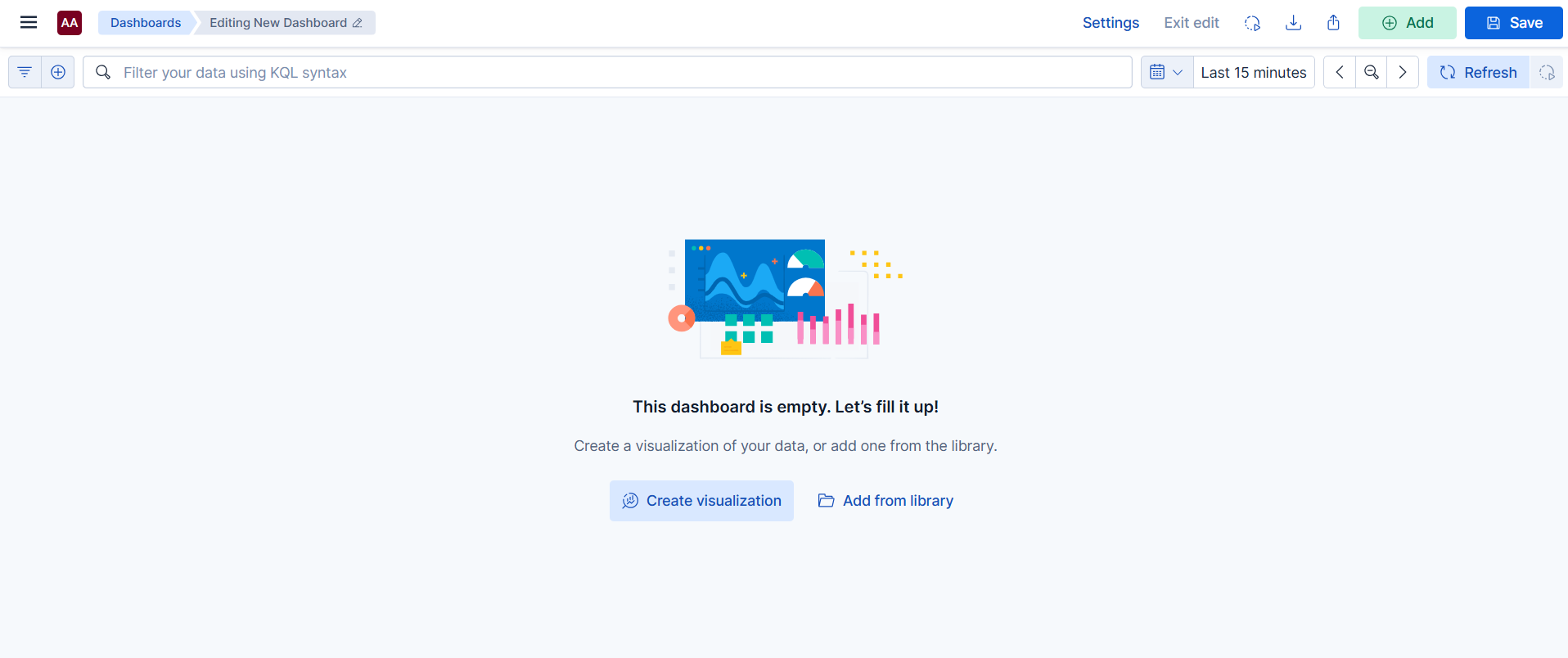
Fig. 225 Creating a new dashboard
Click Save to save the dashboard. You can also choose whether to store the current time interval with it.
Click Settings to change the dashboard settings, including the title, description and tags.
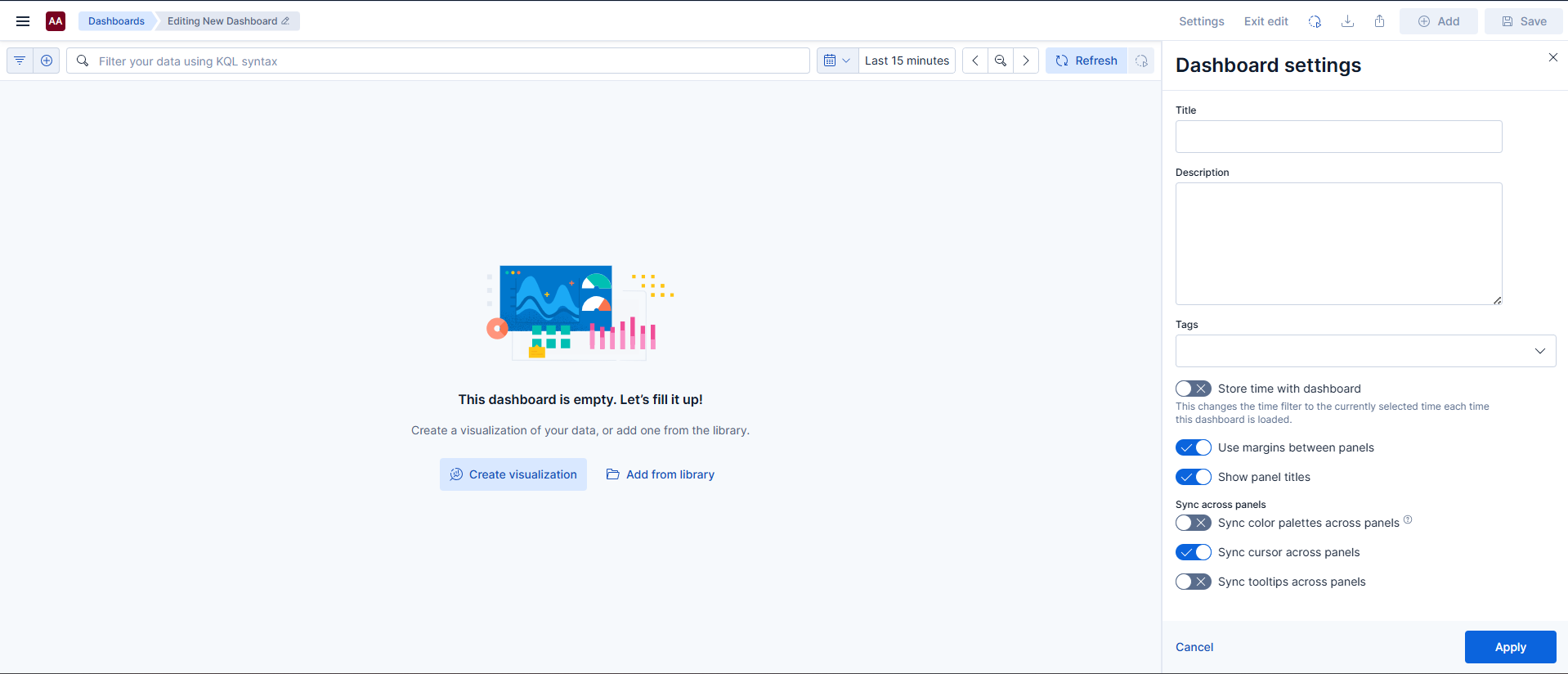
Fig. 226 Dashboard settings
Add Visualizations to a Dashboard
You can add a visualization to a dashboard in two ways:
Click Visualization to create a new visualization with Lens.
Click From library to add a visualization you created earlier.
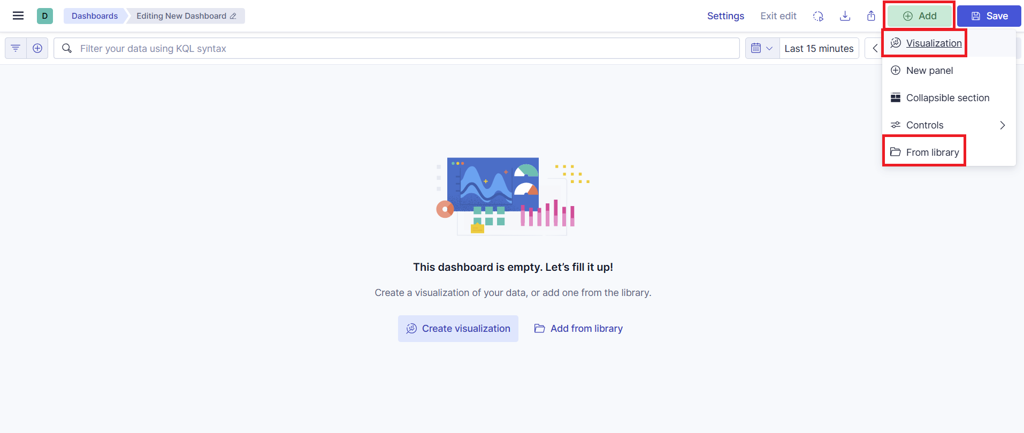
Fig. 227 Adding a visualization
Add Controls to a Dashboard
Controls are interactive filters that refine the data shown in a dashboard’s visualizations. You can use them to select values, define ranges or apply conditions directly from the dashboard. This lets you explore data without changing each chart one by one.
To add a control:
Click Add and then Controls:
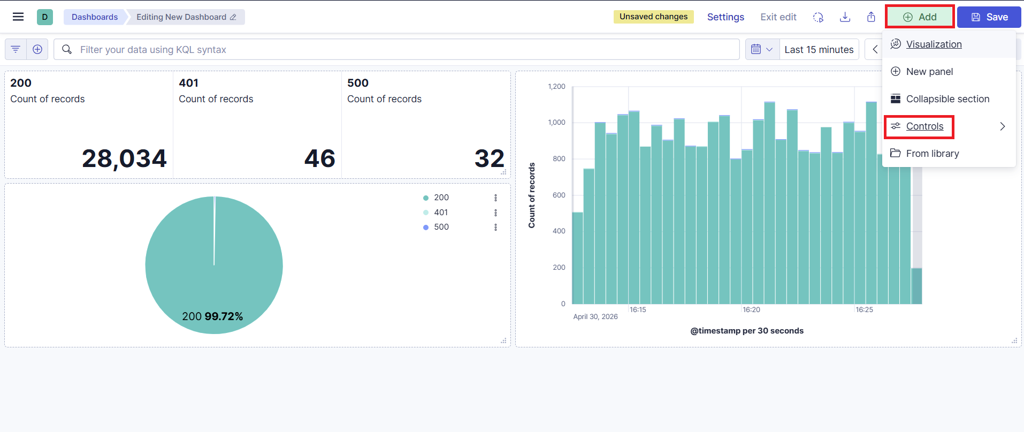
Fig. 228 Adding controls
Click the Control button:
Choose:
the data view
the field
the label to show in the dashboard
the type of control (list of values or numeric range)
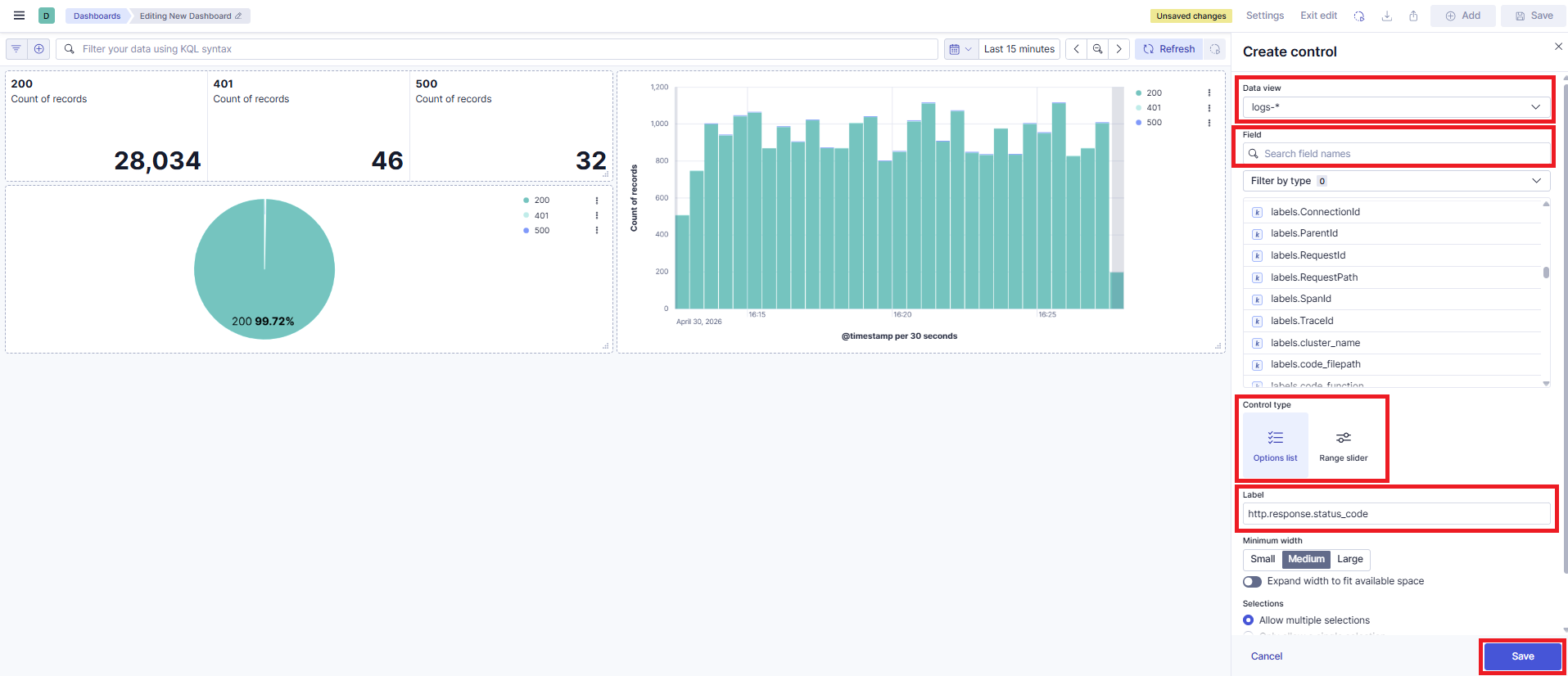
Fig. 229 Choosing control settings
Click Save. The control appears in the dashboard:
Further reading: Dashboards in the Elastic documentation.
Canvas
Canvas lets you create highly customized visual presentations based on Elasticsearch data. You can design interactive workpads that combine charts, metrics, text, images and other visual elements in a free-form layout.
Canvas works much like a presentation application such as PowerPoint, where Canvas is the application, each workpad is a separate presentation, and each page within a workpad is like a slide.
You can create as many workpads as you need, but Canvas displays only one workpad at a time. To switch to a different workpad, return to the Canvas list and open the workpad you want.
For a full description of every feature, see the official Elastic documentation on Canvas.
Canvas goes beyond standard dashboards. Use it to build more flexible, presentation-style views, for example for reports, monitoring screens or executive summaries.
Roles and Permissions
Depending on the role defined by the contract with your organization, you might have different permissions:
VIEWER: Read
EDITOR: Create, Read, Update and Delete
ADMIN: Create, Read, Update and Delete
Create a Workpad
Click Create workpad to open a new workpad:
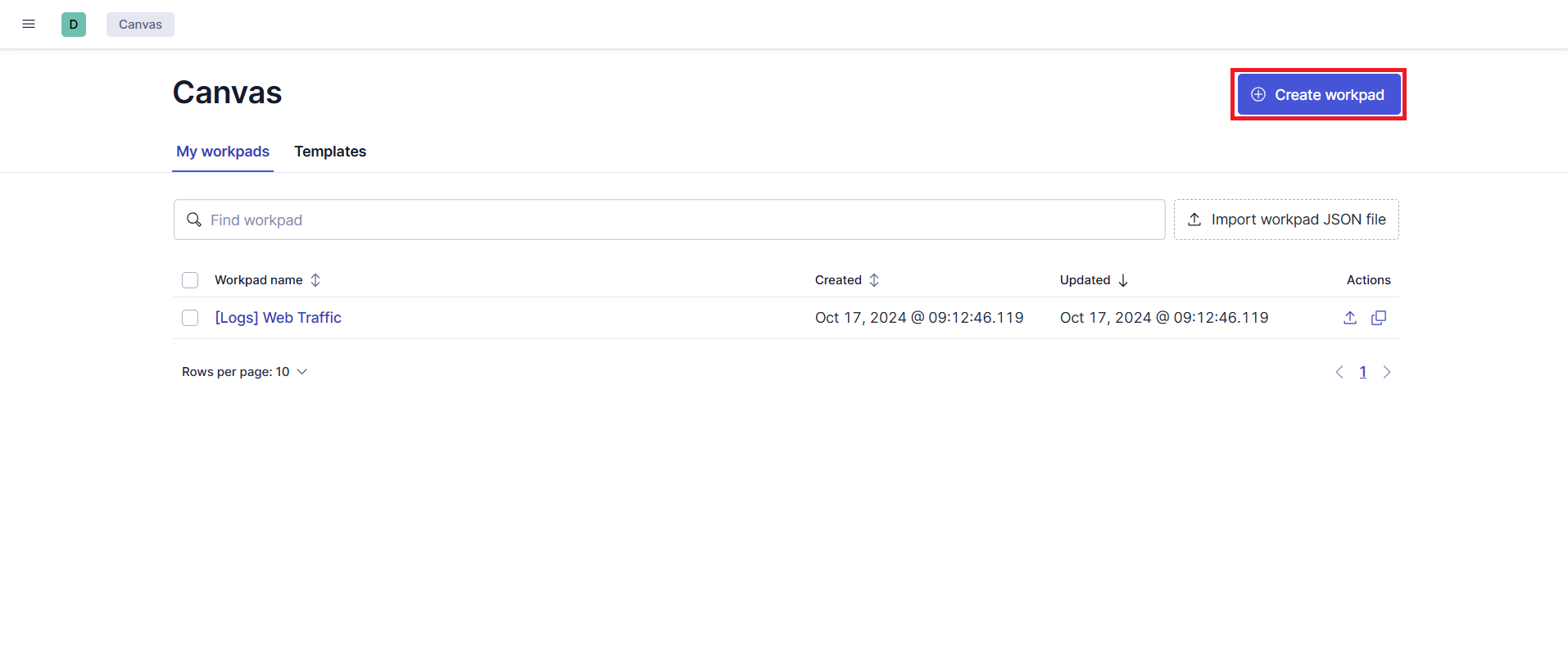
Fig. 230 Creating a new workpad
The workpad is a free-form page where you can arrange data, charts, text, images and graphic elements in any layout you like.
The toolbar at the top of the page has the main actions for building the workpad:
Add element: insert new elements into the workpad
Add from library: add saved items from the library
Select type: choose the type of element to add
View / Edit: switch between view mode and edit mode
Share: share or present the workpad
Start from these controls when you build and manage a workpad.
Workpad Settings
The Workpad settings panel on the right side lets you set the properties of the whole page:
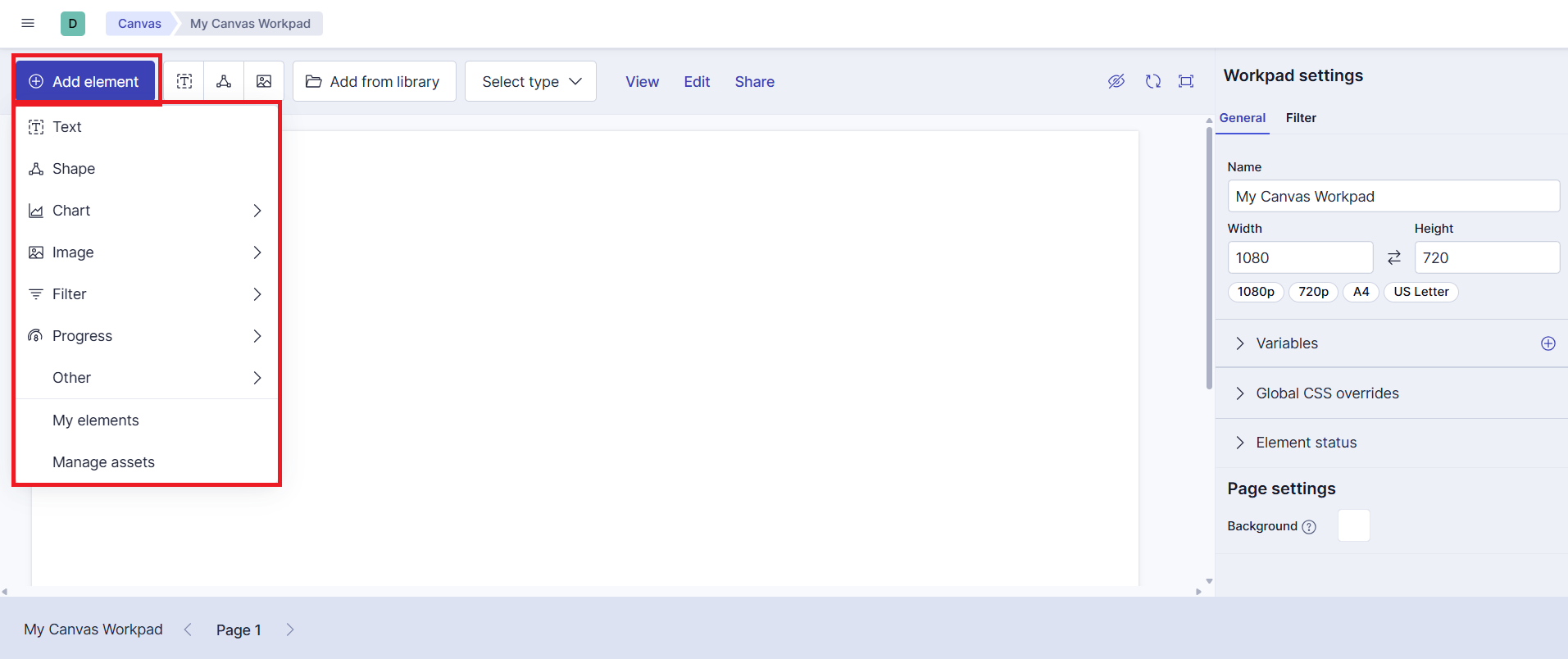
Fig. 231 Workpad settings panel
Name
Width and height
page format presets, such as 1080p, 720p, A4 or US Letter
Variables
Global CSS overrides
Element status
page background
Use these settings to fit the workpad to different screens or presentation formats.
Further reading: Canvas in the Elastic documentation.
Maps
Maps lets you visualize and analyze geospatial data on interactive maps. Use it to display documents, events or metrics that contain geographic information, so you can see more easily how data is spread across locations and spot geographic patterns. For a full description of every feature, see the official Elastic documentation on Maps.
Roles and Permissions
Depending on the role defined by the contract with your organization, you might have different permissions:
VIEWER: Read
EDITOR: Create, Read, Update and Delete
ADMIN: Create, Read, Update and Delete
With Maps you can:
represent data on a map
analyze events or metrics by location
identify geographic concentrations or distributions
combine multiple layers of geographic information
interact with the map through zoom, filters and exploration tools
Maps is useful when your data includes coordinates, regions or other geographic fields and you need a spatial view of the information.
Create a Map
To create a map, click Add layer. This is the action you use to add data to the map. The available options are grouped into three categories:
- Elasticsearch
Add layers based on data stored in Elasticsearch. Use this option to create layers from indexed documents that contain geographic fields, such as coordinates, shapes or other location data. This is the option to choose when the map needs to show operational data coming directly from Elasticsearch.
- Reference
Add reference layers that give geographic context to the map. These layers don’t contain your main business or observability data. Instead, they provide supporting information, such as boundaries, regions or base reference elements, that helps you interpret the data visually.
- Solutions
Add layers related to specific Elastic solution features. These are ready-to-use options for particular use cases. What’s available depends on the configuration and the capabilities enabled in your environment.
In short, choose the layer type that best fits your data:
Elasticsearch for indexed geospatial data
Reference for contextual geographic layers
Solutions for solution-specific map integrations
After choosing the layer type, configure how the data is displayed and then add the layer to the map.
Example: Add a Layer from Elasticsearch Documents
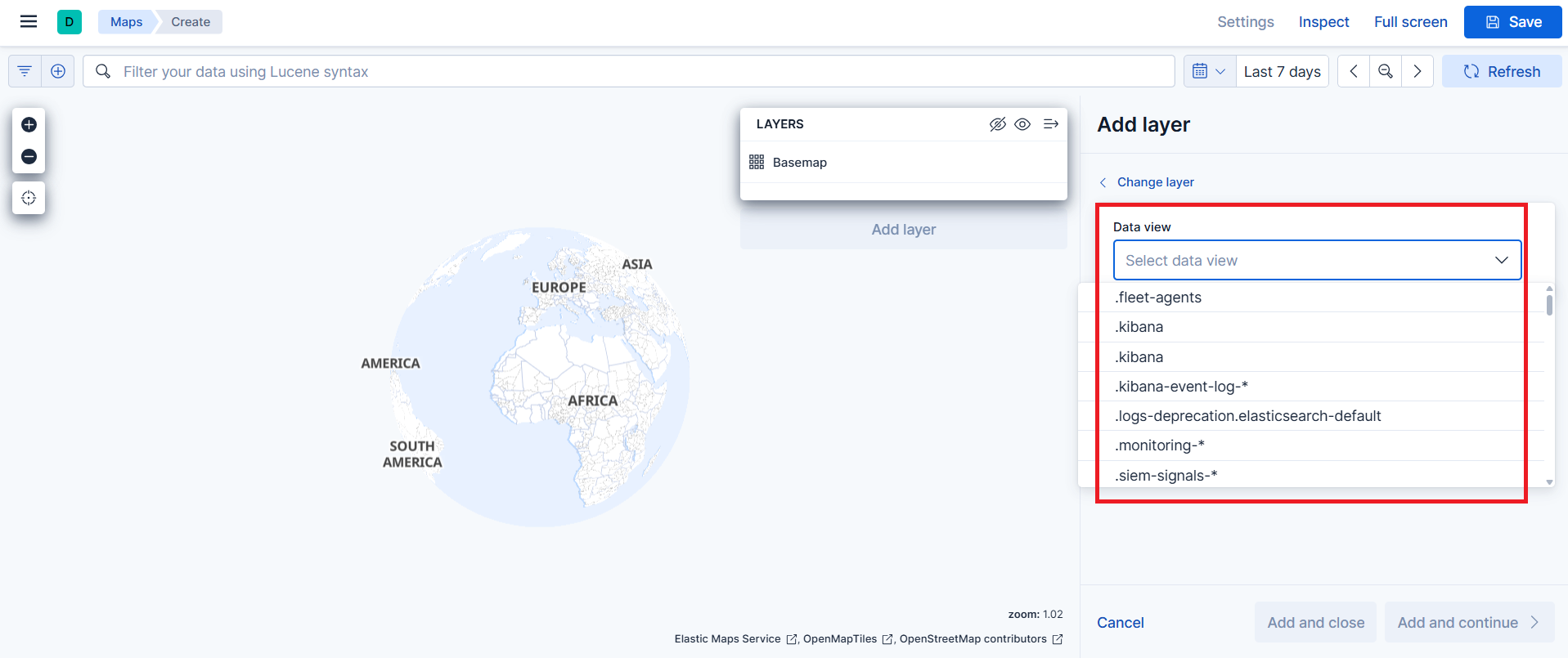
In this example, select the Documents option in the Elasticsearch category:
Choose the data view:
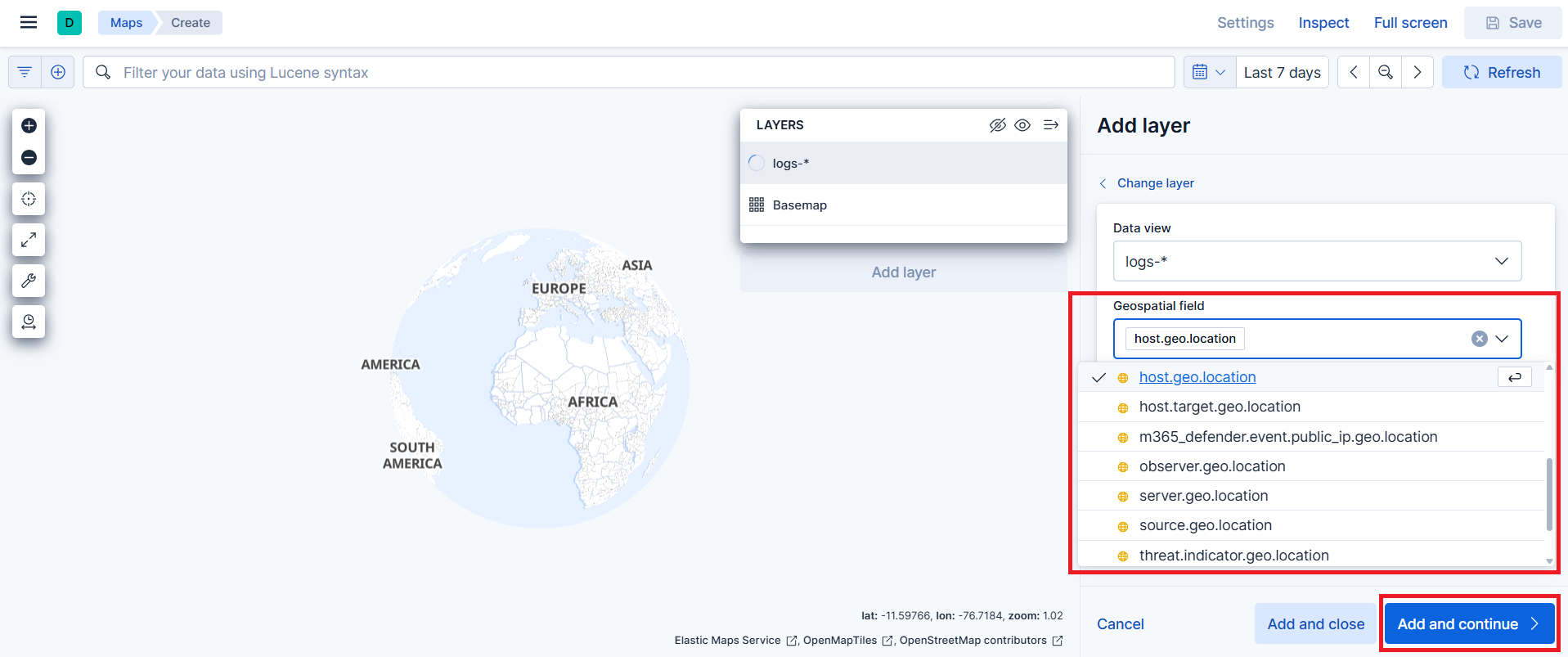
Choose the geo_point field to use for the map:
Configure the layer. The following options control how data is displayed and how you interact with it on the map:
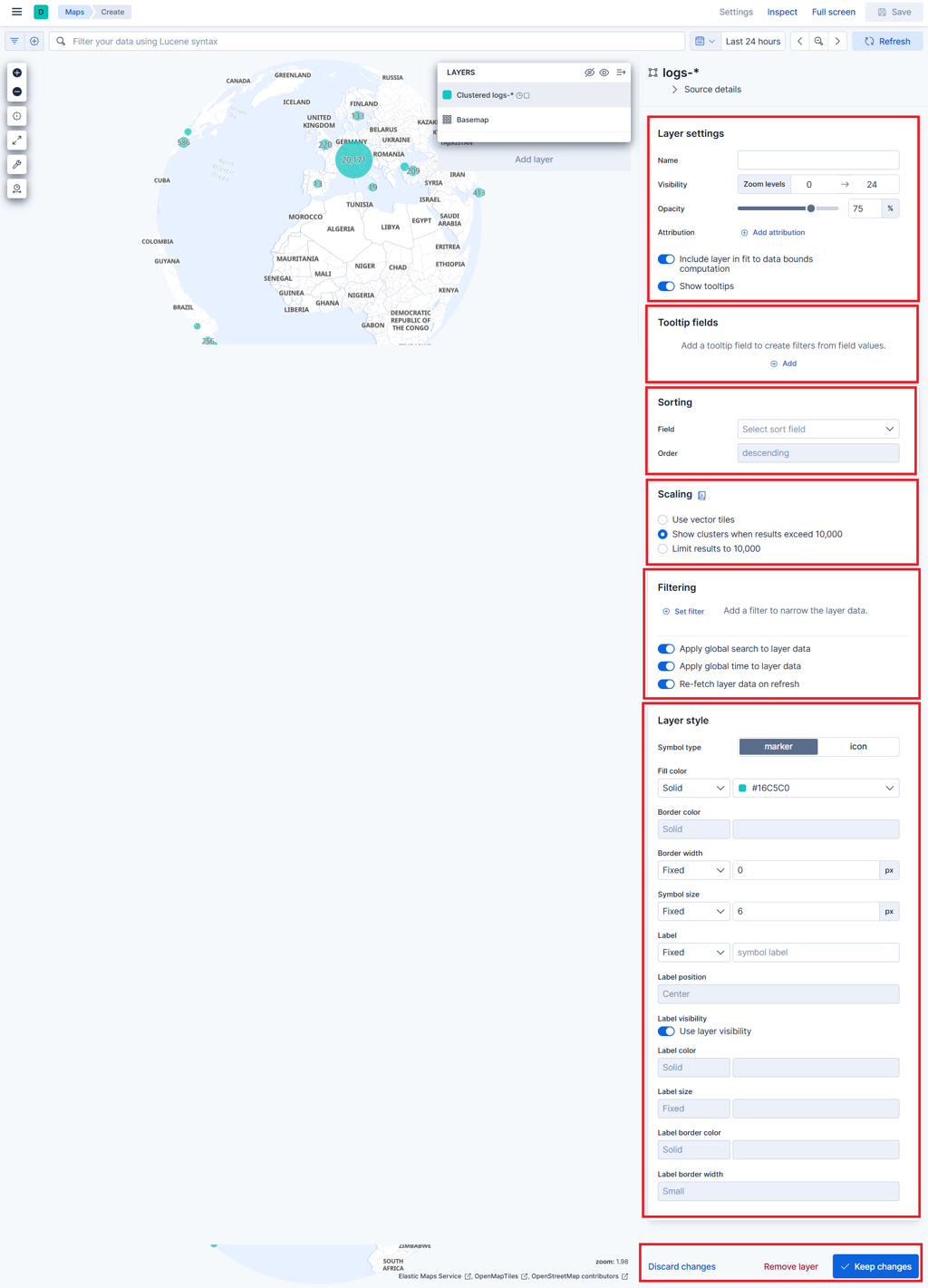
Layer settings: the general configuration of the layer, such as name, visibility and basic behavior
Display fields (tooltip fields): the fields shown when you hover over or click a feature on the map
Sorting: the order in which documents are drawn, which affects visibility when multiple points overlap
Scaling: how many documents are shown and how they are grouped when there are a lot of them
Filter: limits the documents included in the layer
Layer style: the visual appearance of the layer, such as colors, icons, labels and symbol style
Further reading: Maps in the Elastic documentation.

