
User Guide Functional Overview Requirements Architecture System Installation NetEye Additional Components Installation Setup The neteye Command Director NetEye Self Monitoring Tornado Business Service Monitoring IT Operation Analytics - Telemetry Geo Maps NagVis Audit Log Shutdown Manager Reporting ntopng Visual Monitoring with Alyvix Elastic Stack IT Operations (Command Orchestrator) Asset Management Service Level Management Cyber Threat Intelligence - SATAYO NetEye.Cloud Solution Monitoring Business Service Monitoring Asset Management ELK - Log Analytics SOC System Administrator SOC Attacker Centric Cyber Threat Intelligence - SATAYO NetEye Update & Upgrade Backup and Restore How To NetEye Extension Packs Troubleshooting Security Policy Glossary
module icon Visual Monitoring with Alyvix
Overview User Roles Install Alyvix Core Install Alyvix Service Nodes RDP Client Tutorial Overview Example: Windows Start Button Example: Open Windows Settings Example: Web Browser Test Case Example: Authentication Test Case Alyvix Tutorial Video Index Building Tools Editor: Interface Overview Editor: Script Building Editor: Managing Scripts Designer: Interface Overview Designer: Interface Options Designer: Component Tree Selector: Interface Overview Test Case Execution Test Case Format Test Case Management Dashboard Use Cases
ntopng Visual Monitoring with Alyvix Elastic Stack IT Operations (Command Orchestrator) Asset Management Service Level Management Cyber Threat Intelligence - SATAYO Introduction to NetEye Monitoring Business Service Monitoring IT Operation Analytics Visualization Network Visibility Log Management & Security Orchestrated Datacenter Shutdown Application Performance Monitoring User Experience Service Management Service Level Management & Reporting Requirements for a Node Cluster Requirements and Best Practices Kubernetes Networking NetEye Satellite Requirements TCP and UDP Ports Requirements Additional Software Installation Introduction Single Node Cluster Kubernetes NetEye Master Master-Satellite Architecture Underlying Operating System Acquiring NetEye ISO Image Installing ISO Image Single Nodes and Satellites Cluster Nodes Configuration of Tenants Satellite Nodes Only Nodes behind a Proxy Additional NetEye Components Satellites Nodes only Verify if a module is running correctly Accessing the New Module Cluster Satellite Security Backup and Restore Identity and Access Management External Identity Providers Configure federated LDAP/AD Emergency Reset of Keycloak Configuration Keycloak Hostname Configuration Advanced Configuration Roles Single Page Application in NetEye Module Permissions and Single Sign On Within NetEye Importing User Federation Groups inside another Group Importing OIDC IdP Groups inside another Group Resource Tuning Advanced Topics Basic Concepts & Usage Advanced Topics Monitoring Environment Templates Monitored Objects Import Monitored Objects Data Fields Deployment Icinga 2 Agents Configuration Baskets Dashboard Monitoring Status Integration with Elasticsearch VMD Permissions Notifications Jobs API Configuring Icinga Monitoring Retention Policy NetEye Self Monitoring Concepts Collecting Events Add a Filter Node WHERE Conditions Iterating over Event fields Retrieving Payload of an Event Extract Variables Create a Rule Tornado Actions Test your Configuration Export and Import Configuration Example Under the hood Development Retry Strategy Configuration Thread Pool Configuration API Reference Configure a new Business Process Create your first Business Process Node Importing Processes Operators The ITOA Module Configuring User Permissions Telegraf Metrics in NetEye Telegraf Configuration Telegraf on Monitored Hosts Visualizing Dashboards Customizing Grafana The NetEye Geo Map Visualizer Map Viewer Configuring Geo Maps NagVis Audit Log Overview Shutdown Manager user Shutdown Manager GUI Shutdown Commands Advanced Topics Overview User Role Management Cube Use Cases ntopng and NetEye Integration Permissions Retention Advanced Topics Overview User Roles Install Alyvix Core Install Alyvix Service Nodes RDP Client Tutorial Overview Example: Windows Start Button Example: Open Windows Settings Example: Web Browser Test Case Example: Authentication Test Case Alyvix Tutorial Video Index Building Tools Editor: Interface Overview Editor: Script Building Editor: Managing Scripts Designer: Interface Overview Designer: Interface Options Designer: Component Tree Selector: Interface Overview Test Case Execution Test Case Format Test Case Management Dashboard Use Cases Overview Architecture Authorization Kibana Elasticsearch Cluster Elasticsearch Configuration Replicas on a Single Node Elasticsearch Performance tuning Overview Enabling El Proxy Sending custom logs to El Proxy Configuration files Commands Elasticsearch Templates and Retentions El Proxy DLQ Blockchain Verification Handling Blockchain Corruptions El Proxy Metrics El Proxy Security El Proxy REST Endpoints Agents Logstash Rsyslog Elastic APM Elastic RUM Multitenant OpenTelemetry Collector Elastic XDR Overview Authorization in the Command Orchestrator Module Configuring CLI Commands Executing Commands Overview Permissions Installation Plugins Single Tenancy Multitenancy Communication through a Satellite Asset collection methods Display asset information in monitoring host page Overview Customers Availability Event Adjustment Outages Resource Advanced Topics Introduction The Intelligence We Produce Mitre Attack Coverage Getting Started Settings SATAYO Items Intelligence Requirements Managed Service Request Form FAQ Changelog SATAYO Community NetEye.Cloud as a SaaS solution NetEye.Cloud Subscription Base Concepts Authentication Options Authentication via IdP Group Claims for Authorization Management Authentication via Microsoft Entra ID Roles and Permissions Authorization Navigating the UI Monitoring with NetEye.Cloud Monitored Objects Finding and Filtering Hosts Exporting Monitoring Data Viewing Host and Service Details Organizing with Groups Tactical Overview Problems View Dashboard Typical Daily Interactions Scheduled Downtime Notifications and Alerts AutoDiscovery VMD Business Service Monitoring Business Process Logic Business Process View Asset Management in NetEye.Cloud Automatic Inventory Collection Software & License Management Contract & Supplier Management Change & Lifecycle Management Getting Started with ELK Analytics SOC System Administrator (AdS) Access to NetEye and Elastic Elastic Dashboards Elastic Discover Elastic Alerts Elastic Rules Introduction to SOC Attacker Centric Service Description NetEye SIEM About SATAYO Getting Started Threat Intelligence and Security Operations How SATAYO works MITRE ATT&CK Coverage Dashboard SATAYO Findings SATAYO REST API SaaS & Managed Mode SATAYO MCP Server Before you start Update Procedure Single Node Upgrade from 4.50 to 4.51 Cluster Upgrade from 4.50 to 4.51 Satellite Upgrade from 4.50 to 4.51 DPO machine Upgrade from 4.50 to 4.51 Create a mirror of the RPM repository Sprint Releases Feature Troubleshooting Backup and Restore Tornado Networking Service Management - Incident Response IT Operation Analytics - Telemetry Identity Provider (IdP) Configuration NetEye Cluster on Microsoft Azure NetEye Cluster on AWS Introduction to NEP Getting Started with NEPs Online Resources Obtaining NEP Insights Available Packages Advanced Topics NEP Updates & Upgrades Setup Configure swappiness Restarting Stopped Services Enable stack traces in web UI How to access standard logs Director does not deploy when services assigned to a host have the same name How to enable/disable debug logging Activate Debug Logging for Tornado Modules/Services do not start Sync Rule fails when trying to recreate Icinga object How to disable InfluxDB query logging Managing an Elasticsearch Cluster with a Full Disk Some logs are not indexed in Elasticsearch Elasticsearch is not functioning properly Reporting: Error when opening a report Debugging Logstash file input filter Bugfix Policy Reporting Vulnerabilities Cyber Resilience Act Compliance Glossary

Example: Web Browser Test Case

Our previous examples used the Windows Start button. These are easy examples for beginners because the Start button is available on every Windows desktop. But they’re also more like toy examples than actual productive use cases.

More often you’ll want to launch an application that’s not necessarily available from the Desktop, such as a Microsoft Office app, a calendar, or a web app like SalesForce or Dynamics 365. So let’s look at an example where we start up a browser and check how long it takes to load the first page.

Before we start, there’s an important point about web browsers that we need to take into consideration: Browsers have GUI persistence, meaning that they remember the size and position onscreen of the last browser window that the user had open. Assuming that we want to check frequently that a web app is up and running (i.e., monitor it), or run a preset script (i.e., a macro behavior), it makes things much easier for our test case if we know exactly where and what size the browser window will be when we launch it.

In addition, it’s also a big help if we know whether the browser window is already open and visible on the screen, because we don’t want to launch it if it’s already launched. Third, browsers will remember your credentials and immediately log you in without asking you. So if you want to test whether or not the login window is working, that’s a browser behavior you don’t want to have happen.

So in many cases you should consider the following best practices for web apps when using Alyvix, which will make it easier to write robust Alyvix test cases:

  1. Launch the browser in full screen mode so you know where the window boundaries and controls will be positioned onscreen

  2. Close the browser as the last step in your script, so that it won’t still be open the next time you run the test case

  3. Launch the browser in private mode so it doesn’t look for existing credentials

Let’s see how we can do all of this in one simple Alyvix test case:

1. Blank Desktop

Make sure the Desktop is empty, with no open windows. Then launch Alyvix Editor with a new file name not already in our test case directory:

C:\Alyvix\testcases> alyvix_editor -f browser-test

2. Set the delay

To give us time to arrange the desktop the way we want it before capturing the screen, we can set the screen capture delay by changing the number in Delay [sec] 0 at the bottom of Alyvix Editor from 0 seconds to something higher like 5:
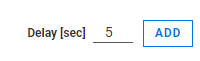
Setting up the 5-second delay before capturing the screen

Now click on ADD and then immediately press Escape to return to Alyvix Editor.

3. Launch the browser

We now have this step at the top right of Alyvix Editor containing only the root node component:
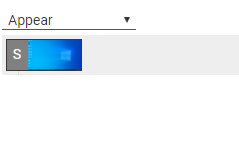
Selector's Appear/Disappear field and root node component

Rather than directly clicking on an icon to launch our desired browser, we’ll use this step to launch it directly and pass it a few startup parameters so that we can follow the best practices we described above. At the bottom right of Alyvix Editor you’ll see this:
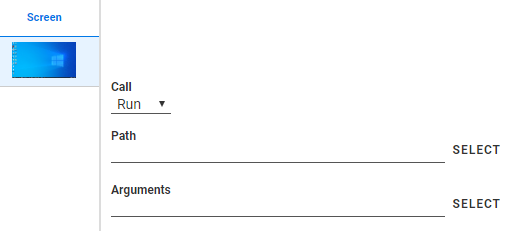
About to add parameters to the Run option

Leave the “Call” field set to Run, but fill in the “Path” field either by copying and pasting the application path (in our case for the executable of the web browser we want to use), or by using SELECT to bring up the file chooser.

Next, we can fill in the browser parameters. These generally have the form of Linux command line switches, where there are one or more options each beginning with a double dash (--), followed finally by the URL we want the browser to load.

For instance, if we want to start at http://www.visittrentino.it and follow our best practices, we would type the following into the “Arguments” field (assuming a Chromium-based browser like Chrome):

--incognito --start-maximized --new-window http://www.visittrentino.it

When you’re done it should look like this:
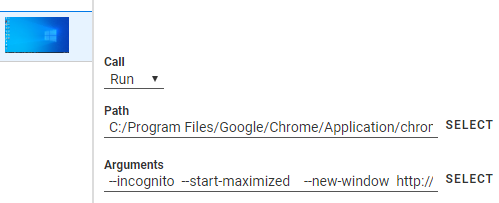
After adding parameters to the Run option

4. Launch from Alyvix Editor

We don’t even need to launch the browser ourselves, Alyvix will do it for us. At the bottom left you’ll see that the new step was added with the default name VisualObject1. Change the name to something like Launch Browser and then click on the black “Play” icon just to its left.
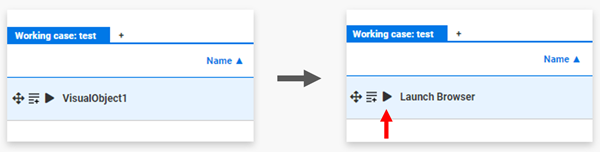
Launch the browser with the step's "play" action

If everything went correctly you should see that a full screen, new private window was launched and that the website was automatically loaded. A cookie notice will pop up because you’re in incognito/privacy mode, and if you exit and run this step again, the cookie notice will pop up again no matter how many times you press “Allow all”, because it doesn’t recognize you as the same user.

Similarly, if you go to a login page, it will always ask for your credentials and never load them from the browser cache. This behavior is exactly what we want, because it is repeatable every time we run our test case.

Note that Edge (also Chromium-based) and Firefox have similar command line options to the Chrome options we used here.

5. Add more steps

You can now add any number of additional steps to continue the desired interaction with the browser, such as actually logging in, running through the steps of a particular task, and logging out.

6. Measure page load time

In step #4 we launched a browser, but that step didn’t actually measure anything. Suppose though that we want to see how long it took to load the page, and then follow our best practices and exit the application.

To do that, click on ADD at the bottom of Alyvix Editor again to capture the screen showing our maximized browser, then mark up these two screen elements that will indicate the page successfully loaded:
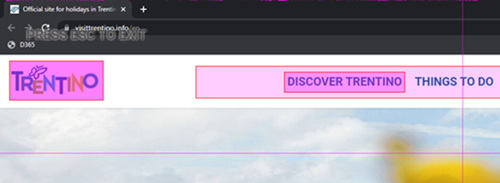
Mark the screen capture

Now press Escape to return to Alyvix Editor. At the top right you’ll see several boxes representing the selected screen elements underneath the keyword “Appear”, which means you want to know the moment that those elements appeared onscreen:
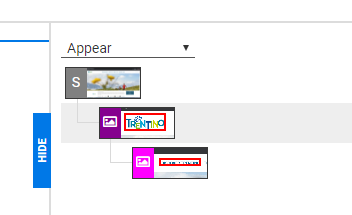
The screen capture components

Click on the top box marked “S”, and you’ll see the same options at the bottom that we saw after the first step. This time under “Call” select the Kill option. If you then click on the “Process” box, a list of currently running processes will appear:
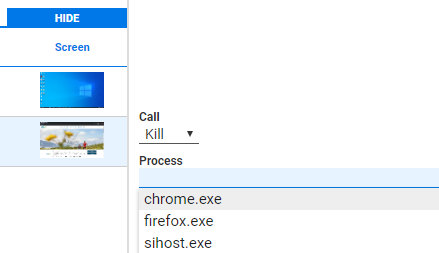
Select "Kill" to close the browser

Simply select the browser you’re running, and when this step matches against the interface, Alyvix will record the time taken and then kill the browser process (the other best practice we mentioned at the beginning of this tutorial). You can then run this test case a second or third time and you won’t end up with a large number of browser windows cluttering your desktop.

7. Script panel

You can now add the two steps to the Script panel by dragging them or by pressing their add step actions next to the black “Play” icon as shown in Step #4 above.

Make sure the two steps are in the correct order in the Script panel, as they will then be run in that specific sequence:
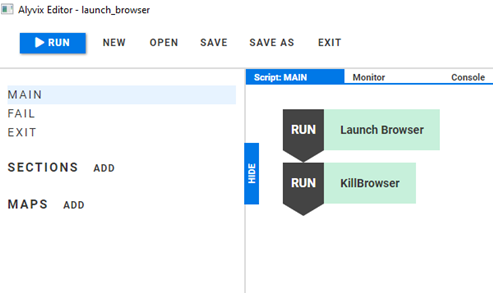
The Script panel after adding the steps

8. Running the test case

Let’s check our test case works by calling Alyvix Robot using the alyvix-runblue button at the top left. When the test case runs you’ll see the browser launch, the web page load, and then the browser will disappear. Alyvix Editor will then appear again with the Console panel displaying the timing data for our steps:
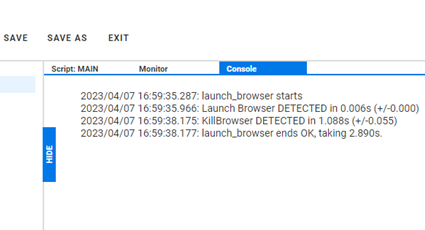
The results of running the script in Alyvix Editor

Congratulations, you did it! You can now optionally save your test case and exit Alyvix Editor using the SAVE and EXIT buttons at the top.

If you prefer you can watch a video version of this tutorial example on YouTube.
