


 Visual Monitoring with Alyvix
Example: Windows Start Button
This short task will accomplish something simple, yet will show you the potential of using Alyvix.
You can find similar tutorials in video format.
1. Launch Alyvix Editor
Give this example a file name (the exact name is not important, but we will reuse it in subsequent examples):
C:\Alyvix\testcases> alyvix_editor -f start-test
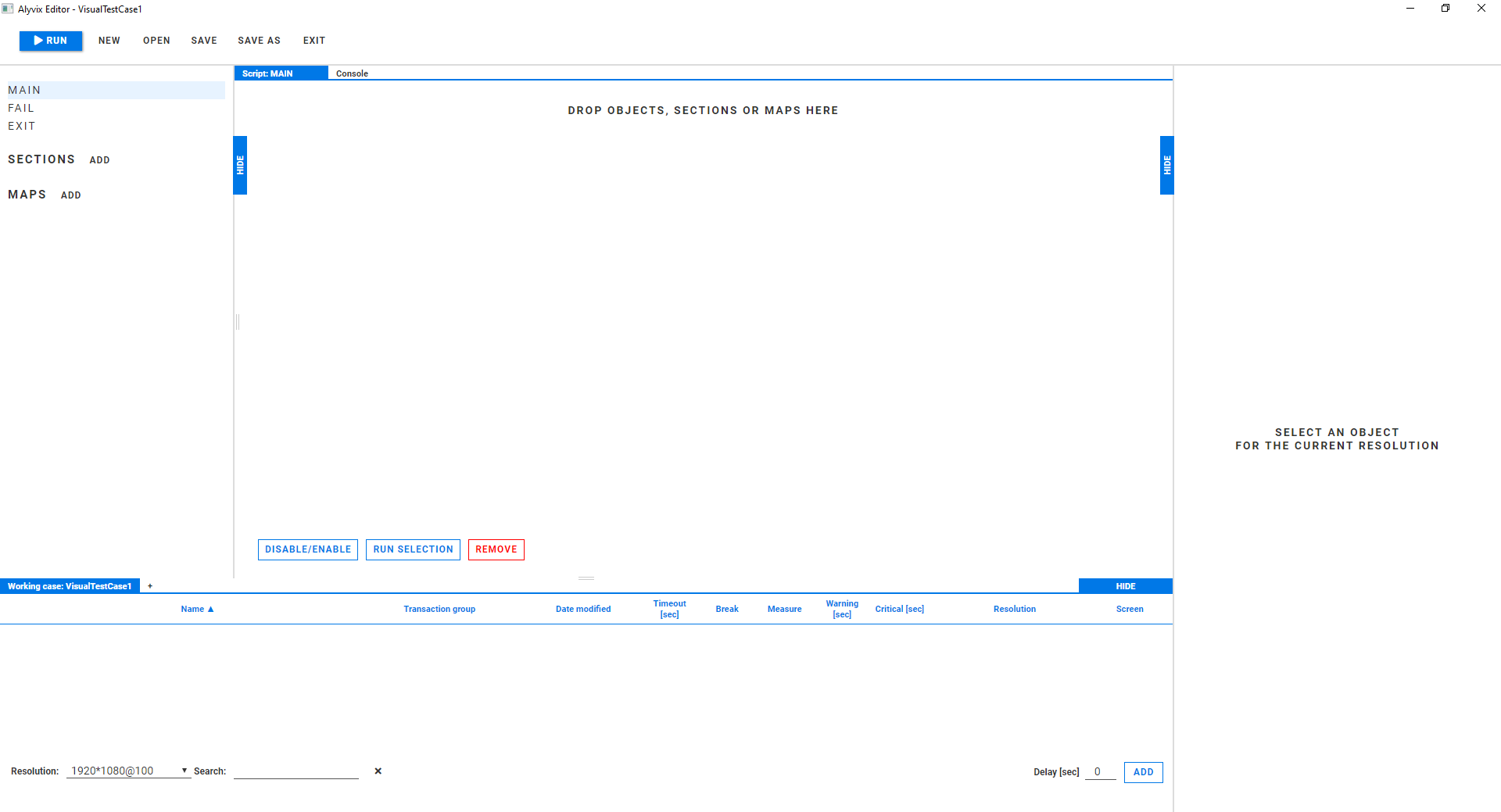
The Editor screen will appear:
2. Start the screen capture
Click on the button at the bottom. This will trigger a screen capture, which we can then annotate using the mouse. We’ll use this screen grab over the next few steps to build a concrete action that Alyvix will perform.
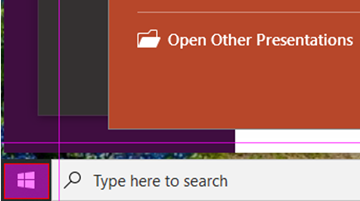
3. Create a selection around the Windows Start button
Use the mouse to left click and drag at the bottom left of the screen grab so that it looks similar to this screenshot (if you don’t get it quite right the first time, just resize any of the edges using the left mouse button):
4. Press the Escape key
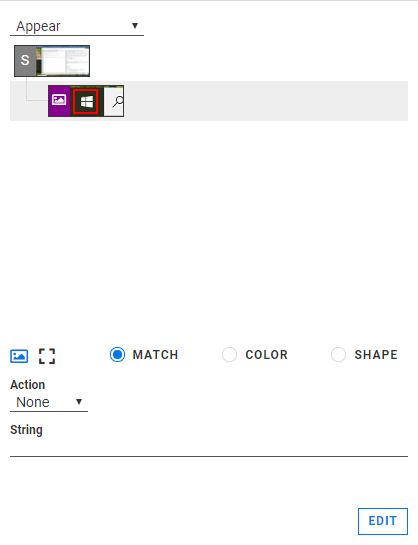
The Escape key will return us to the Editor interface where the area we selected containing the Start button is now shown in the Designer panel at the right. We’ve just used the screen grab to create a test case object, and now we can begin to change its parameters.
5. Find the Action dropdown
At the bottom of the panel you’ll find a dropdown option with the value
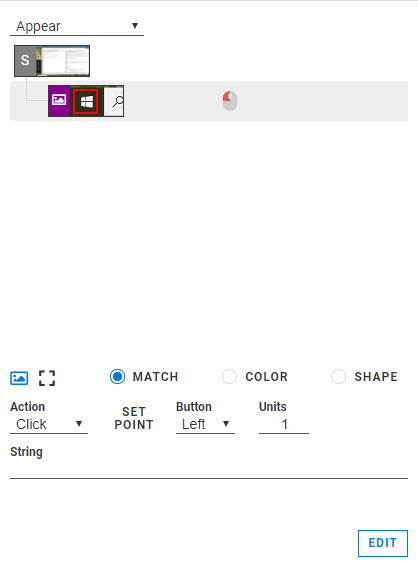
None. Change that value to Click and keep its default values. A mouse
icon to the right of the Start button will appear, confirming this with a red
highlight where the left mouse button is.
6. Save the new test case
Click the button at the top of the screen to save this new
test case. Since we started Editor with the option -f start-test,
the resulting file will be saved as
start-test.alyvix in the directory we were in at Step 1.
7. Change the file name
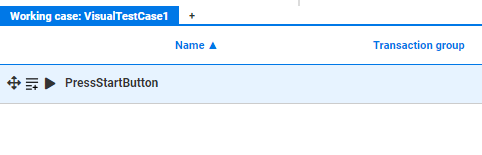
Go to the Selector panel at the bottom left and change the name of our test case object from the default name VisualObject1 to a more meaningful one like PressStartButton:
8. Script the action
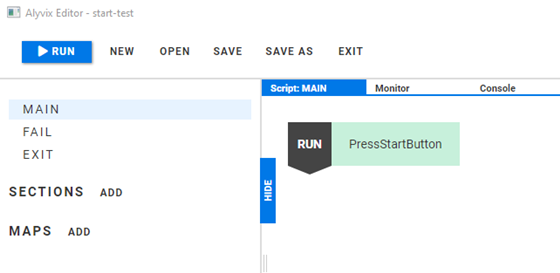
Add our new action to the replay script by clicking on the  action to the left of the label PressStartButton.
Insert the new test case object into the Scripting panel under the blue tab marked :
9. Run the test case
Finally, start Alyvix Robot by pressing the  button at the top left.
The Editor window will disappear and the mouse will move over to the Windows Start button and click, causing the Start menu to open.
If you saw the Start menu appear, then you’ve successfully built and run your very first Alyvix test case!
Finally, save and exit Alyvix Editor using the and buttons at the top.
The following page will continue this example to create a more complex script.

