


 Visual Monitoring with Alyvix
Test Case Execution
Alyvix test cases you’ve built with Alyvix Editor can be run using Alyvix Robot. Robot can also execute any individual test case objects you’ve created with Alyvix Designer, along with test case objects you’ve duplicated with Alyvix Selector.
In a monitoring environment, the typical use case is to create a set of test cases once, and then run those test cases repeatedly (ideally at a fixed interval). Examples include monitoring the usability of proprietary applications, streamed apps that inherently have no observability, and web pages delivered from a remote server. A test case may measure responsiveness every 5 minutes, for instance, and send timing and other data to a monitoring system in the standardized output format it expects.
Before you can use Alyvix in a production environment, however, you’ll first need to iteratively develop and improve your test cases.
There are two principal modes for interacting with Alyvix Robot to ensure test cases work properly during the development and testing phase, and that will give you human-readable output.
Calling Robot from within Alyvix Editor via the
 button to run the script currently in Editor (note that in
this mode you cannot export the resulting timing data)
button to run the script currently in Editor (note that in
this mode you cannot export the resulting timing data)Calling Robot from the Command Prompt, passing it the name of a test case object, and using the default --mode option with the
alyvixoption set
In either case, one test case is executed at a time.
Note
You can also run one or more individual test case objects of a test case’s script which can be especially useful when debugging them.
Launching Alyvix Robot from the Command Prompt
When Robot is run from the command prompt, it first checks to see if one or more
test case object names were passed via the -o parameter. If so, Robot will
execute those test case objects in sequence. Otherwise, if the -o parameter
is not specified, but the .alyvix test case file named by the -f parameter
contains a script previously defined in Editor,
then Robot will run that script
(see the -f option below for details).
Multiple test case objects can be run in sequence by putting them in order within quotation marks, as long as all those objects exist in the test case (in this example, the objects “start” and “settings”):
C:\Alyvix\testcases> alyvix_robot -f start-test -o "start settings"
Adding the verbosity (-v) parameter will provide additional information that can help you should you need to debug your test cases (see the section CLI Output Format below).
Alyvix Robot will execute an Alyvix file’s test case script when run with the
following command (with or without the .alyvix suffix):
C:\Alyvix\testcases> alyvix_robot -f <alyvix-file-name>
If you used Alyvix Editor to create a file named start-test.alyvix
containing a test case object named start, you can run just that test case
object with this command:
C:\Alyvix\testcases> alyvix_robot -f start-test -o start
Finally, the args (-a) parameter allows you to pass one or more values (each treated as a string) to insert into the String field of a component, and thus insert them into the user interface, for example in a text field. If you need more than one argument, they should be enclosed in double quotation marks. If an argument contains a space, that argument should be enclosed with single quotation marks (in general, follow the rules of Python for string management within the command line).
These options are summarized in the following table:
Option |
Alias |
Argument |
Description |
--args |
-a |
<string(s)> |
Supply one or more strings to use in the String field when running a single test case object in Designer. |
--filename |
-f |
<name> |
Supply the file name with or without extension. Alyvix assumes that if no path is included with the file name, then the original test case is stored in the current directory which Alyvix was launched from. If you include an absolute path with the file name, then it will look in that path for the named file, and store the log file in that same path, not in the current path. You should not use relative paths. |
--key |
-k |
<key> |
Supply a private key for use with encryption. |
--mode |
-m |
<name> |
Specifies the desired output format.
|
--object |
-o |
<name> |
Supply the Object name(s). |
--screenshot-saving |
-ss |
- |
Save screenshot and annotation PNG files (or JPG depending on the screenshot compression argument) in the test case folder. |
--screenshot-compression |
-sc |
<type> |
Select the type of compression to use.
|
--verbose |
-v |
<n> |
Set the verbosity level for debugging output ranging from 0 (min) to 1 (max).
|
What Alyvix Robot Returns
Alyvix uses the following industry-standard return values for monitoring systems:
Error Level |
Label |
Meaning |
0 |
|
The service responded and the results were within expectations |
1 |
|
Action should be taken to prevent a likely near-term problem from becoming more serious |
2 |
|
A significant incident has already occurred and should be handled immediately |
With the --mode option you can specify the format for the information returned (defaults to CLI output mode).
CLI Output Format
When run from the command prompt with the default --mode parameter, Alyvix Robot will both (a) display a short log describing basic events and timing data, and (b) create a new file based on the original test case (see the -f option for details), but with the detailed time measures added from that particular run. A timestamp corresponding to the moment of execution will be appended to the file name:
<filename>_<full-timestamp>.alyvix
For example:
start-test_20191220_145228_UTC+0100.alyvix
When run from the command prompt with the default -m alyvix parameter, Alyvix Robot will return human-readable output like the following when successful:
If it fails instead, the output will appear like this:
If you’ve enabled the break flag in Alyvix Selector for a given test case object, then if that test case object fails, no further test case objects will be executed. If it’s not set, then the test case object will instead be skipped after its timeout has expired.
When you run Robot from the Windows command prompt, you can access the return value programmatically as follows:
C:\Alyvix\testcases> echo %errorlevel%
0
Multiple Measures in CLI Output Mode
If a given test case object is run more than once in a single script, regardless of whether it appears in a sequential node, a conditional or a section, only the output of the object’s last run will be displayed. However, all results are still stored on the series element of the test case object. Should you need to see the output of a single test case object when it runs more than once, best practice is to use Selector to duplicate it (this will improve any data visualizations used with the data).
The exception is when a test case object appears in a loop. In this case, the
timing results will be output for each key in the loop’s map.
For instance, the following example might be output after running
the script
FOR:my_mapRun:dataentry (note that individual map results appear in
the output with the pattern <object_name>_<map_name>-<key_name>):
Nagios Output Format
When Alyvix Robot is run from the command prompt, the --mode nagios
command option will generate performance data in
Nagios message format
 . The main status result for the monitoring check will be
one of the following values:
. The main status result for the monitoring check will be
one of the following values:
test_case_output_status |
Description |
|
When the test case exits with |
|
When the test case exits with |
|
When the test case exits with |
|
Whenever the test case exits with |
The time measurements for Nagios are specified as follows (note that object_timeout_s for SKIPPED must be converted to milliseconds):
Test Case Object Status |
Format |
JSON Path |
|
<object_performance_ms>ms |
object_name > measure > series[] > exit > true |
|
<object_timeout_s>ms |
object_name > measure > series[] > exit > false |
|
ms (no value) |
object_name > measure > series[] > exit > fail |
|
ms (no value) |
object_name > measure > series[] > exit > not_executed |
First nagios output line:
Second nagios output line:
Third nagios output line:
NATS-InfluxDB Output Format
These parameters will publish all measures to an InfluxDB database through a NATS channel. You will need the NATS server IP, port, subject name, and measurement name.
C:\Alyvix\testcases> alyvix_robot -f vt -m "nats-influxdb <nats_streaming_server_ip>:<port> <influxdb_subject_name> <influxdb_measurement_name>"
Alyvix Cipher for Encryption
You can use a combination of a cipher and a private key to protect sensitive information and credentials such as user names and passwords when for instance you need to log in to a protected application or website. The Video Tutorials provides examples of how you can do this using Microsoft’s RDC and Citrix, while a written tutorial in the Getting Started section shows an example web app login.
To encrypt a string, supply the text to be encrypted and your private key as arguments to the alyvix_cipher command in a command prompt:
C:\Alyvix\testcases> alyvix_cipher -e <text_string_to_encrypt> -k <private_key>
You can also decrypt a cipher as follows, which returns the original string as long as the private keys used in both cases are the same:
C:\Alyvix\testcases> alyvix_cipher -d <text_string_to_decrypt> -k <private_key>
Once you’ve computed the encrypted string, enter it into the string box of an object component (such as a text component indicating a user name or password field) and save the test case.
There are two ways you can then use the encrypted string to hide credentials until the moment they are entered into the interface:
Using alyvix_robot from the command prompt as shown in the section above, add the string as the object of the --key or -k parameter. This will decrypt the key for that single session.
C:\Alyvix\testcases> alyvix_robot -f <test_case_name> -k <private_key>
Using a scheduling system like Alyvix Service, add the private key in the appropriate place (e.g., in the session management settings). The credentials will then be passed automatically via the --key parameter to Alyvix Robot each time it schedules a new run of the test case.
Note
With the current version of Alyvix Editor, you cannot launch Alyvix Robot while deciphering keys from within the Alyvix Editor interface as described here. It will run the test case, but will insert the encrypted text without decrypting it.
How Alyvix Measures Time
Alyvix makes a series of screen captures multiple times a second in a process
called frame grabbing. The system hardware determines exactly when a frame
is grabbed.
Note
You can find a video explanation about how Alyvix measures time in the video section, or directly on YouTube.
At regular intervals, Alyvix takes one of those frames and tries to
detect objects within it. The set of objects to look for is defined in the
test case object that is currently running in the script.
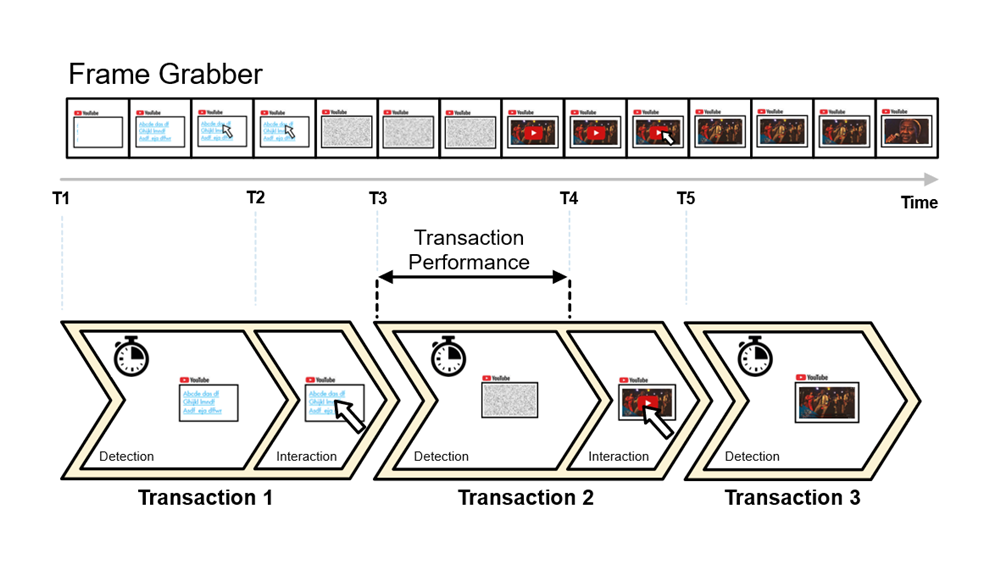
A transaction is the object detection phase plus the interaction phase, and
corresponds to the execution of the component tree including its actions.
Transaction performance is the amount of time it takes to complete the
object detection phase. It’s the number that’s displayed
as the result in Alyvix’s output when the Measure flag is set for that step.
Because frame grabs aren’t continuous, there’s a span of time between them
when you can’t be sure exactly when an object appeared. The accuracy
reported by Alyvix is the greater of the times before and after the
frames when the object is first detected.
The following animation shows the interrelationship between these concepts:
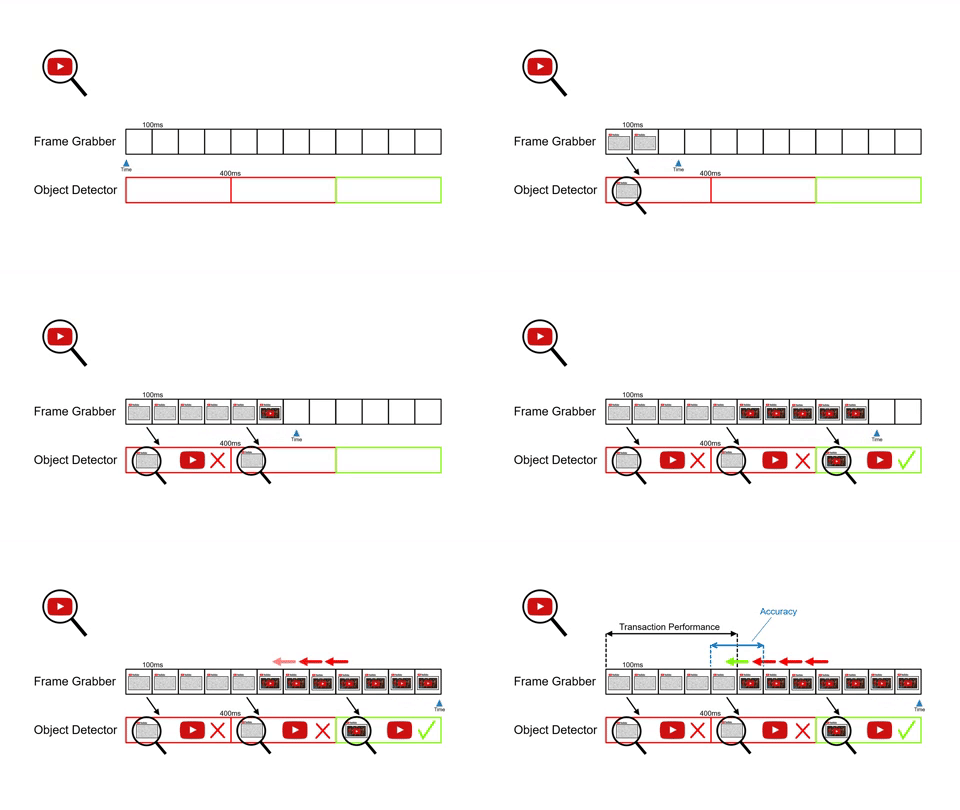
The object detector looks at the first in a set of frames to see if all the objects in the component tree are present. If the entire component tree matches, Alyvix will begin looking backwards through recent frames to find the first frame that matched. The time between the last user interaction and the match is the transaction performance.
When measuring transaction performance, Alyvix starts counting at the moment the previous interaction sequence ends and the new object detection phase begins. It stops counting as soon as it’s able to match the current set of objects it’s looking for. At the end of each run, Alyvix then reports all of the measured transactions for which the measure flag was set in the test case object.
The amount of available hardware resources greatly affects how accurate Alyvix can be. Because frame grabbing in the underlying hardware is performed by Windows, you can add resources like RAM and CPU to increase the number of frames grabbed per second, which will decrease the amount of time between each frame and thus improve accuracy.

