


 Business Service Monitoring
Business Process View
With the Business Service Monitoring you can access a quick top-level view for thousands of components on a single screen.
By default all nodes are ordered alphabetically while viewing them in the UI. Though, it is also possible to order nodes entirely manually upon request.
The hierarchy of a derivative Business Processes structure is expressed with the help of the breadcrumbs. A breadcrumb component always gives you a quick indication of your current location.
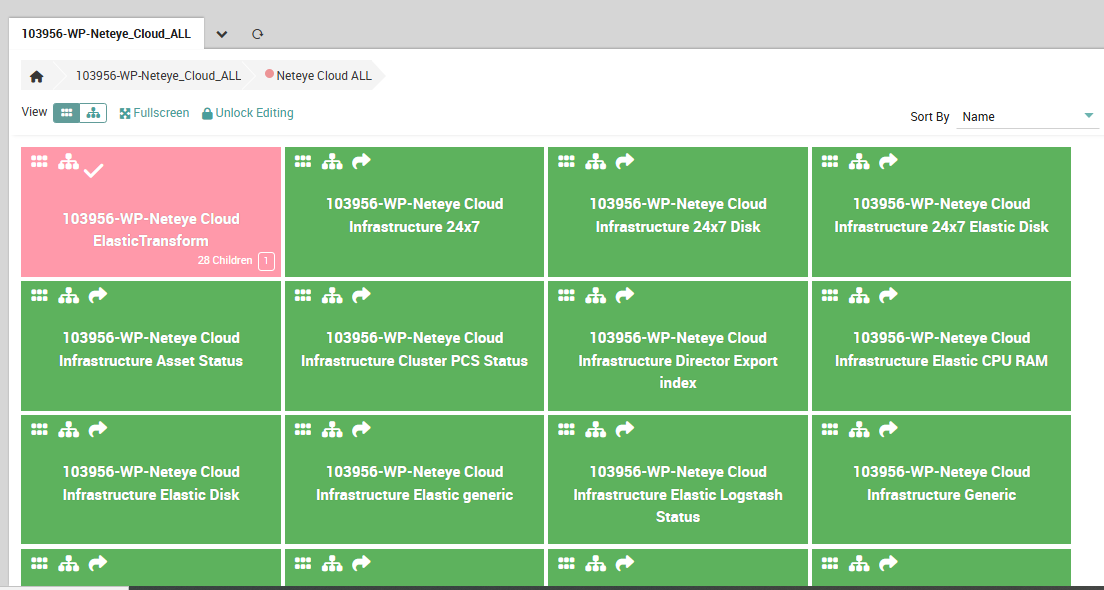
Fig. 212 The Business Process nodes distribution.
The left-most section shows the title of the current Business Process Configuration. The remaining sections show the path to the current Business Process Node currently being shown.
Hovering the Breadcrumb with your mouse shows you that all of it sections are highlighted, as they are links pointing to either the root level when clicking on the Configuration Node itself or to the corresponding Business Process Node. All but the last section, showing your current position in the tree. Even if not being highlighted, it is still a link an can be clicked in case you need so.
Actions below the Breadcrumb
Choose a renderer: The first link allows to toggle the used Renderer. Currently a Tree and a Tile renderer are available.
Move to Full Screen Mode: Every view can be shown in Full Screen Mode. Full screen means that left and upper menu together with some other details are hidden. Your Business Process will be able to use all of the available space.

