


 NetEye.Cloud Solution
Authorization
Once a user is authenticated, he or she needs to be authorized, which is the set of steps for obtaining their specific permissions and role which they will need to use NetEye to complete their tasks without granting them additional abilities beyond what they should have.
NetEye uses the Single Sign-On (SSO) model: You only need to sign in once to be able to use any NetEye module, so permissions determine not only what you can do within a particular module, but also whether you can even access a module at all.
If your users are entirely managed by Wuerth IT and hence are not provided by your IdP, then the appropriate groups and permissions will be handled via requests to the Management Portal you are already familiar with. If not, the information below will assist you in configuring the required information in your IdP to grant your users the necessary permissions.
OIDC and Group Claims
Under OIDC, the Identity Provider (IdP) passes a token to NetEye as part of the OIDC message confirming successful authentication.
This token contains a number of group claims, which are how a local administrator indicates which permissions a user should be granted when they log in.
A user who has been authenticated, but whose account has not been otherwise configured, will have no group claims in their token, and will thus be able to enter the NetEye platform but will not see any modules or data.
{
  "iss": "My IdP Issuer",
  "exp": 1300819380,
  "sub": "A user",
  "aud": "NetEye",
  "jti": "abcdefgh-ijkl-mnop-qrst-uvwxyz123456",
  "tokenType": "JWTToken",
  "group": [
     "group-claim-1",
  "group-claim-2"
  ]
}
Caption: [Example group claims in OAuth 2.0 JSON Web Token](https://datatracker.ietf.org/doc/html/rfc7519)
Each individual element of a group claim contains the information necessary to tell NetEye the exact permissions a user should have. A group element consists of a code supplied by WITIT identifying the company/tenant, a Contract Type and an Access Level:
grp[Company Code]-necloud-<contracttype>-<accesslevel>
Caption: Basic structure of a group
Note
Because permissions are assigned during the authorization part of the login process, permissions are effectively updated during login, so any change to permissions will require logging out and logging back in.
Customers manage group memberships in their own Identity Provider — they decide who gets which groups. However, the mapping from groups to actual permissions is controlled entirely on the NetEye.Cloud platform side and reflects only the contracts and access levels that are active for the company/tenant.
A customer cannot grant access to contracts they have not subscribed to, nor can they affect another tenant’s permissions. Group names that do not match any server-side configuration are silently ignored.
Parsing the Group Claims
Assigning permissions to an authenticated user entails reading the group names from the group claims in the token, mapping each group to its contract type and access level via the tenant’s idp_groups_mapping configuration, and then applying the corresponding permissions as defined in the Access-to-Permissions Map.
At the same time, an administrator can configure the appropriate group claims in their IDP by reversing the process.
The elements of a group claim are:
Company Code: The unique tenant ID that ensures a company’s data and infrastructure cannot be viewed or modified by someone outside that company.
Contract Type: Aligned with the set of NetEye modules, a contract type may also refer to a defined subset of a module’s functionality. Examples include MON, ELK, SATAYO and SOC.
Access Levels: The various levels of usage types needed to accomplish specific types of tasks. These roles are:
Viewer: A user who can see information such as monitoring data and performance graphs limited to their tenancy and contract type.
Editor: A viewer who can also edit dashboards and other elements that are not configurations and settings.
Admin: An Editor who can manage data sources and edit configurations. Note that this is equivalent to a module administrator, not a full system administrator.
Note that only one access level is allowed per contract type. Also, some contracts may not utilize all three levels; if a group indicates a contract with an access level that is not a valid combination, the access role will default to Viewer.
As an example, a company named ACME that uses monitoring and the Elastic Stack, needing viewing and editor roles respectively, you would see the following group claims:
"group": [
  "grp[ACME]-necloud-elk-editor",
  "grp[ACME]-necloud-mon-viewer"
]
Whereas the following group claim would not be allowed:
"group": [
  "grp[ACME]-necloud-elk-editor",
  "grp[ACME]-necloud-elk-viewer"
]
A group is thus a <Contract, Access Level> pair in the correct format, enforced with a tenancy constraint. This allows the IdP owner to configure permissions independently for each module.
The group name must be jointly determined with Wuerth-IT to ensure it is not duplicated. Successful configuration of the IdP by the customer thus means all groups are properly configured and added as group claims during authentication.
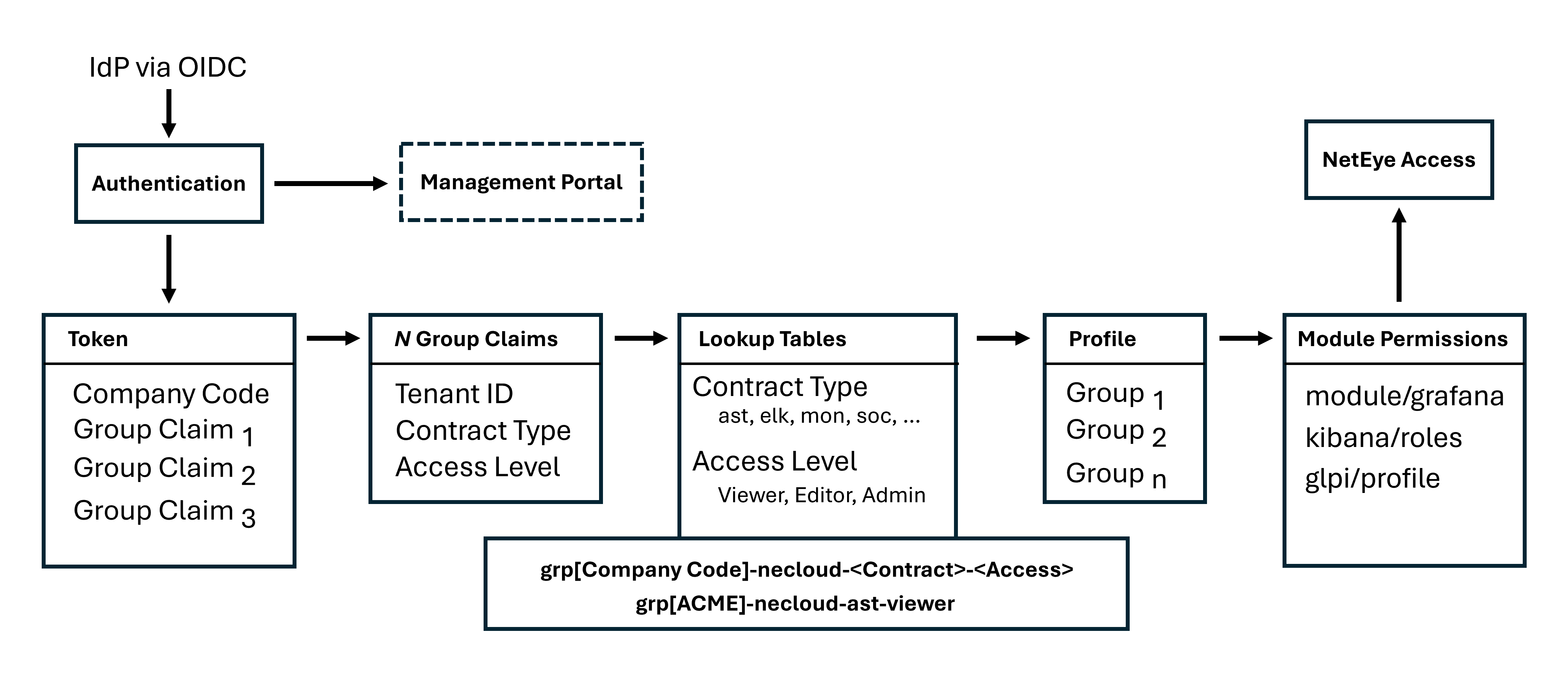
Fig. 187 Insert diagram showing how an OIDC token is converted in stages into module permissions
Unrecognized Group Claims are silently ignored
If a group name in the token does not match any configured entry — whether due to a typo, a misconfiguration in the IdP, or a naming change that wasn’t synchronized — no error is raised. The user simply does not receive any permissions from that group.
As a result: - A user with some matching and some unmatching groups will only receive permissions for the matching ones. - A user with no matching groups will be able to log in (authentication succeeds) but will see no data in the UI, since no permissions are granted.
This silent behavior makes it important to verify that group names configured in the Identity Provider exactly match those agreed upon with WITIT. When a user reports being able to log in but not seeing expected data, a mismatch in group names is the most common cause.
Converting to Permissions
The next step is to take each group and map it to one or more specific module [permissions](https://neteye.guide/current/getting-started/setup/authorization/roles.html) that are added to the user’s profile.
The NetEye Cloud authorization system uses a set of pre-defined tables for this mapping. Each table corresponds to a contract type, so first the correct table is selected by extracting the contract type from the group.
Next, the column associated with the access level is selected in that table. Finally,
for each row in the table where the corresponding access level is yes, the
permission in the Name field is added to the user’s profile.
The following tables indicate which permissions will be granted to users for a particular pair <Contract Value, Access Level>:
ASSET Permissions |
Access Level |
||||||
|---|---|---|---|---|---|---|---|
Name |
Description |
Viewer |
Editor |
Admin |
|||
|
Generic access to module Access Management |
yes |
yes |
yes |
|||
|
GLPI Profile assigned |
Asset Management |
Asset Management |
Asset Mgmt. Admin |
|||
Group Names |
Viewer |
Editor |
Admin |
||||
ASSET |
grp[CODE]-necloud-ast-viewer |
grp[CODE]-necloud-ast-editor |
grp[CODE]-necloud-ast-admin |
||||
ELK Permissions |
Access Level |
|||
|---|---|---|---|---|
Name |
Description |
Viewer |
Editor |
Admin |
|
Generic access to module Kibana |
{fab}`check;sd-text-success` |
yes |
yes |
|
Kibana Roles assigned |
APM Data Viewer APM Space Viewer APM Observability Viewer |
APM Kibana Editor |
|
Group Names |
Viewer |
Editor |
Admin |
|---|---|---|---|
ELK |
grp[CODE]-necloud-elk-viewer |
grp[CODE]-necloud-elk-editor |
grp[CODE]-necloud-elk-admin |
Tenant Restrictions
In addition to permissions, the authorization phase also applies restrictions that limit the user’s visibility to their own tenant’s data. In practice, this amounts to a single restriction being added that equates what users can see to the data belonging to the tenant.
This restriction acts as a boundary that cannot be overridden by any permission level — an administrator within one tenant still cannot see data belonging to another tenant.
This means the authorization outcome has two layers:
Permissions determine what operations the user can perform (view, edit, administer) within each module.
Restrictions determine which data those operations apply to, scoped to the user’s company/tenant.
Compliance
Login attempts — whether successful or not — are logged with the user identity, action, and timestamp.
These logs are retained in compliance with applicable regulations, including the Italian Data Protection Authority’s requirements for system administrator access logging.
IdP/User Configuration Procedure
When an IdP administrator configures permissions for a new user, they need to:
Create their user account locally with an email address using the local domain
Decide which contract types the user will need to work with, and the access level for each contract type
If any of those does not already exist in the company’s Identity Infrastructure, add it with a unique group name (see the tables above)
Connect the user account to those permissions by adding the user to each group, which will include the groups in a group claim that is passed via the OIDC token
Question…
How is tenancy marked in the IdP infrastructure?
Question…
Do we need a separate use case for setting up a new IdP server? That would presumably involve setting up the tenant string…

