


 Cyber Threat Intelligence - SATAYO
SATAYO Findings
Findings represent the result of the analysis performed on evidence collected during regular SATAYO scans. The frequency of running scans is defined in a dedicated Scan times by type of Findings section.
The search process is based on the asset domains that are identified, mapped, and configured during the onboarding phase with a SATAYO analyst. These domains define the monitoring perimeter and serve as the foundation for detecting relevant findings.
The evidence is gathered from publicly accessible sources and correlated to identify elements that contribute to the organization’s external exposure. This exposure is represented through the Attack Surface Index, a numerical value calculated based on the collected evidence and associated findings.
The index ranges from 0 to 100, where 0 indicates no detected exposure and 100 represents the maximum level within the scoring model. Higher values indicate a broader external attack surface, meaning a greater amount of publicly available information and potentially exploitable elements.
The value of the index is also influenced by the size and digital footprint of the organization. Larger organizations with more domains, services, and publicly accessible assets may naturally present higher index values.
With each new scan, newly identified findings are compared with those previously detected. This ensures that the list is continuously updated, highlighting new elements while maintaining visibility on existing ones and their current status.
Findings are grouped into three main categories:
Infrastructure
Data Files & People
Deep & Dark Web
These categories reflect different areas of exposure and collectively contribute to the evaluation of the organization’s Attack Surface Index.
A dedicated Findings page provides a complete and up-to-date list of all detected findings. The structure and details of this page are described in the following sections.
Working with the Findings Page
All detected findings are available on a dedicated Findings page, which provides a consolidated view of the evidence identified during SATAYO scans. This page allows you to explore and review findings across the monitored environment and to focus on the areas that require attention.
Findings can be filtered to narrow the scope of the analysis. Users may limit the view to a specific organization (when associated with multiple organizations) or focus on a particular domain within the monitored perimeter. Findings can also be filtered by their type, which helps identify specific categories of exposure. The full range of finding types is described in the following chapters.
Additional filtering options allow findings to be viewed according to their related ticket attributes, such as ticket status or priority. In general, tickets are created and managed as part of the regular workflow used to process and address detected findings.
Each finding is associated with an identifier that indicates the type of issue detected. These identifiers are not unique and should be understood as attributes used to categorize findings rather than as individual reference numbers.
For deeper investigation, users can open the detailed view of a finding. This view provides additional context and supporting information about the detected evidence, helping users better understand the nature and potential impact of the issue.
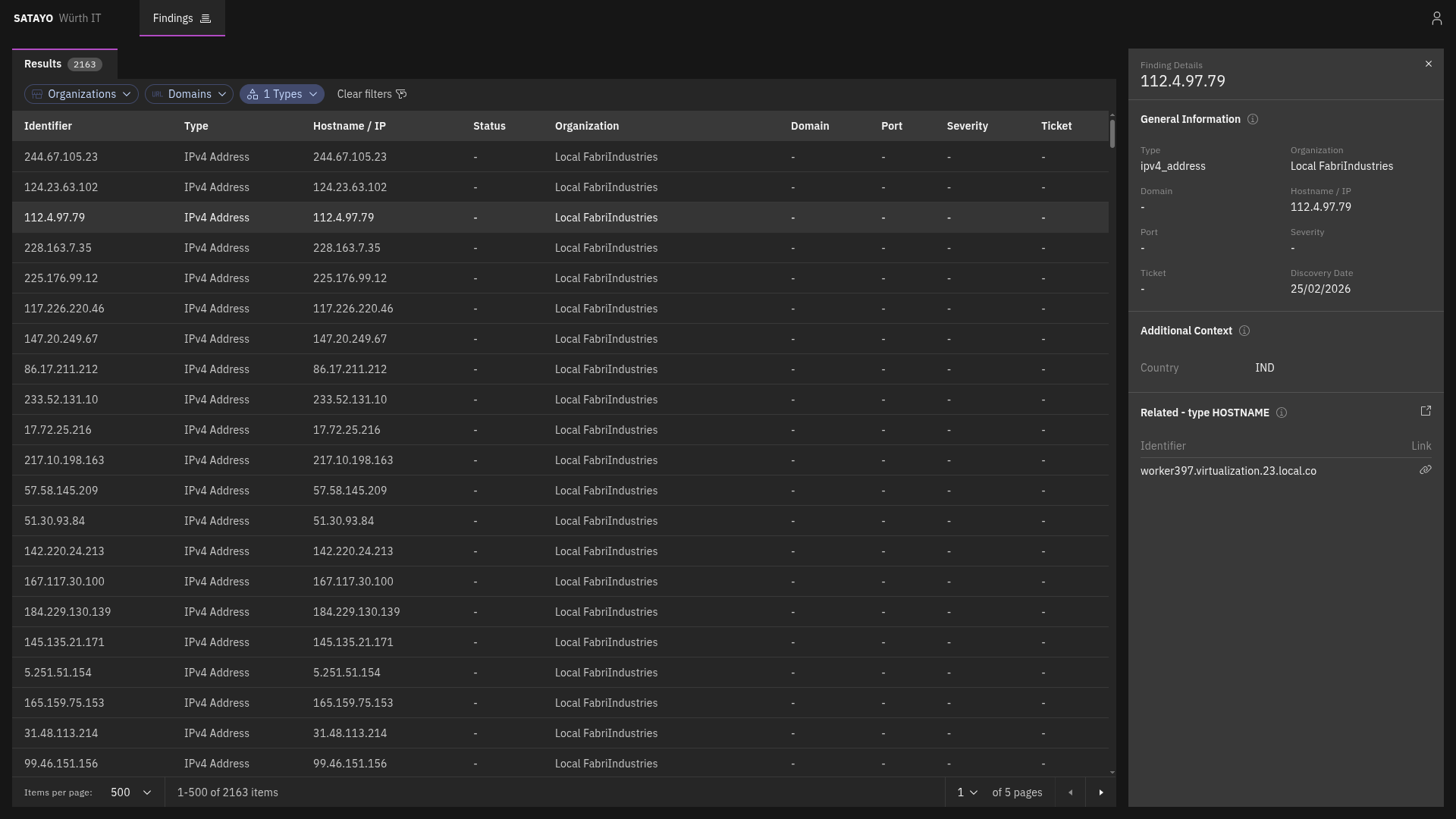
Fig. 205 List of items with the preview panel open of a selected item
From the detailed view, clicking on the icon near the Related title opens another tab with the list filtered to show its related findings. Clicking on the link icon on a related finding opens the same view, with the corresponding finding’s preview panel automatically displayed.
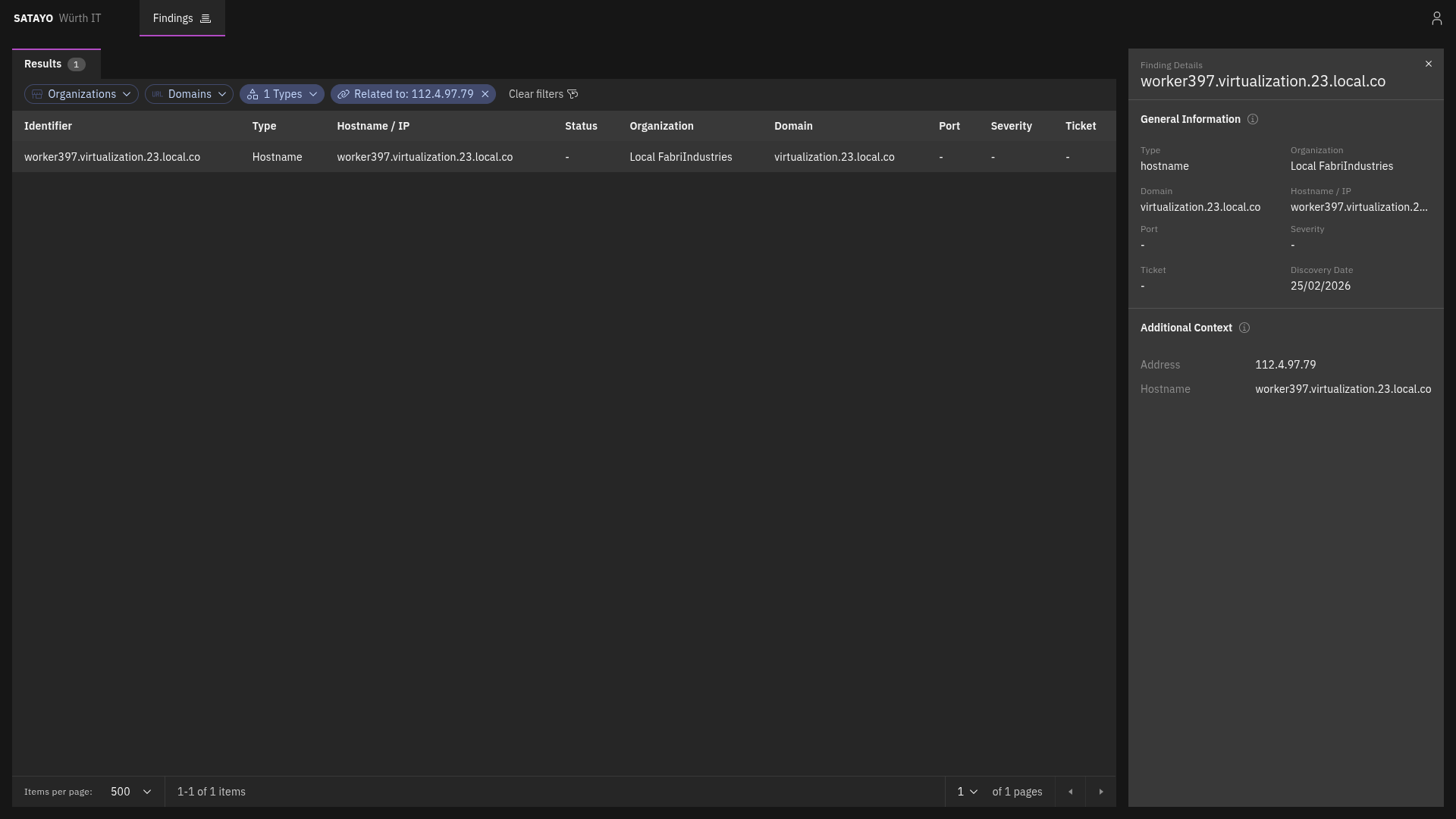
Fig. 206 List of related items with the preview panel open of a selected item
Hostname
MITRE ATT&CK Techniques
The following MITRE ATT&CK techniques are used to classify this finding:
Reconnaissance
Hostname, like IP addresses, is one of the items that SATAYO finds during its analysis. It is a human-readable name that corresponds to an IP address, making it easier to identify and remember. They are one of the starting points for SATAYO’s exposure assessment analysis, and they can provide valuable information about the services and applications running on a network.
They also work as aggregators for other items, such as Services, Mail servers, Mail, SSL/TLS certificates, and more.
They do not contribute directly to the EAIV score, as their mere existence doesn’t pose a risk.
IPv4 Address
MITRE ATT&CK Techniques
The following MITRE ATT&CK techniques are used to classify this finding:
Reconnaissance
The IPv4 address item represents a publicly reachable IP address discovered by SATAYO. It can be correlated to other items, such as Ports and Hostnames.
Port
MITRE ATT&CK Techniques
The following MITRE ATT&CK techniques are used to classify this finding:
Reconnaissance
Each port item complements an IPv4 address item and represents an exposed port on which a service or application at the IP address is listening.
Registry
MITRE ATT&CK Techniques
The following MITRE ATT&CK techniques are used to classify this finding:
Reconnaissance
The registry item consists of the subnet blocks where the retrieved found IP address resides. The addresses inside are scanned to see if there are other resolvable hostnames that, if found, are added to the list of hostnames and constitute an additional base for future scans and analysis.
CVE
MITRE ATT&CK Techniques
The following MITRE ATT&CK techniques are used to classify this finding:
Reconnaissance
Resource Development
Initial Access
The CVE item represents a publicly known vulnerability identified on a specific host during SATAYO analysis. Each item corresponds to a single CVE identifier detected on a particular host. If multiple vulnerabilities are discovered on the same host, a separate CVE item is created for each vulnerability.
For each vulnerability, SATAYO provides a link to the U.S. National Vulnerability Database (NVD), maintained by the National Institute of Standards and Technology (NIST), where detailed technical information about the CVE can be found.
When available, SATAYO also provides links to publicly known exploits or Proof-of-Concept (PoC) implementations associated with the vulnerability.
Additional contextual indicators are included to help prioritize remediation:
KEV (Known Exploited Vulnerabilities) — Indicates whether the vulnerability is listed in the catalog maintained by the Cybersecurity and Infrastructure Security Agency (CISA), which tracks vulnerabilities that are known to be actively exploited in the wild.
EPSS (Exploit Prediction Scoring System) — A data-driven model that estimates the probability that a vulnerability will be exploited in real-world attacks. The EPSS model produces a probability score expressed as a percentage (0–100%). The higher the score, the greater the likelihood that the vulnerability will be exploited.
EPSS is managed by Forum of Incident Response and Security Teams (FIRST), and SATAYO is included in the official list of EPSS-supported vendors.
Service
MITRE ATT&CK Techniques
The following MITRE ATT&CK techniques are used to classify this finding:
Reconnaissance
A service item represents a specific service or application exposed over HTTP on a particular port of an IP address and identified by a hostname.
It is always associated with a hostname, because the hostname is a determining factor in request routing. The HTTP server may use the hostname to route requests to the appropriate virtual host or service.
It provides information about the exposed HTTP service and web server, including:
Open ports with SSL/TLS enabled
Open ports without SSL/TLS enabled
Also service metadata, such as:
HTML title
meta-generator
maintainer email addresses
exposed server headers
unencrypted protocols in use
detected technologies
Linked Domains
The following five finding types are grouped in this category because they all refer to domains. For each detected domain, information such as registrant, country, and creation date is shown. If SATAYO finds MX record details or blacklist presence, this information is also shown.
Domain Suspicious
MITRE ATT&CK Techniques
The following MITRE ATT&CK techniques are used to classify this finding:
Reconnaissance
A Domain suspicious item shows domains classified as suspicious because they contain the company name.
Domain Phishing
MITRE ATT&CK Techniques
The following MITRE ATT&CK techniques are used to classify this finding:
Reconnaissance
The Domain phishing item shows known malicious domains or URLs that are currently performing phishing activities.
Domain Similar
MITRE ATT&CK Techniques
The following MITRE ATT&CK techniques are used to classify this finding:
Reconnaissance
The Domain similar item shows all registered domains similar to the main one. These domains could be used for phishing activities. If a domain was registered recently, chances are that it can be used for malicious purposes.
Domain TLD
MITRE ATT&CK Techniques
The following MITRE ATT&CK techniques are used to classify this finding:
Reconnaissance
The Domain TLD item shows all top-level domains registered with the same base name as the main domain.
Stealer Logs
MITRE ATT&CK Techniques
The following MITRE ATT&CK techniques are used to classify this finding:
Reconnaissance
The Stealer Logs item is a collection (logs) of compromised data associated with your monitored domain, distributed through underground marketplaces. They originate from infections caused by “stealer” malware (often delivered via trojanized or cracked software) which exfiltrates data from infected systems, including browser-stored credentials, session cookies, autofill data, and other locally stored secrets.

